
Installation guide
Follow this step on your device, then choose the button below. This guide cannot check or install apps for you.
What would you like to set up?
Choose your device. We’ll walk through one step at a time.
Full setup: phone → TV → connect → send Both apps are installed — help me connect themHow will you move the file to the TV?
Choose one option. If you are not sure, ask someone to help with this one-time installation.
Let’s prepare your TV first
We will show you where to find the installation permission. Some TVs hide it until Developer options is enabled; others already show it. You do not need USB debugging for these installation methods.
What does the installation message say?
If it says this source cannot install apps, return to the permission steps below. That is different from a Play Protect block.
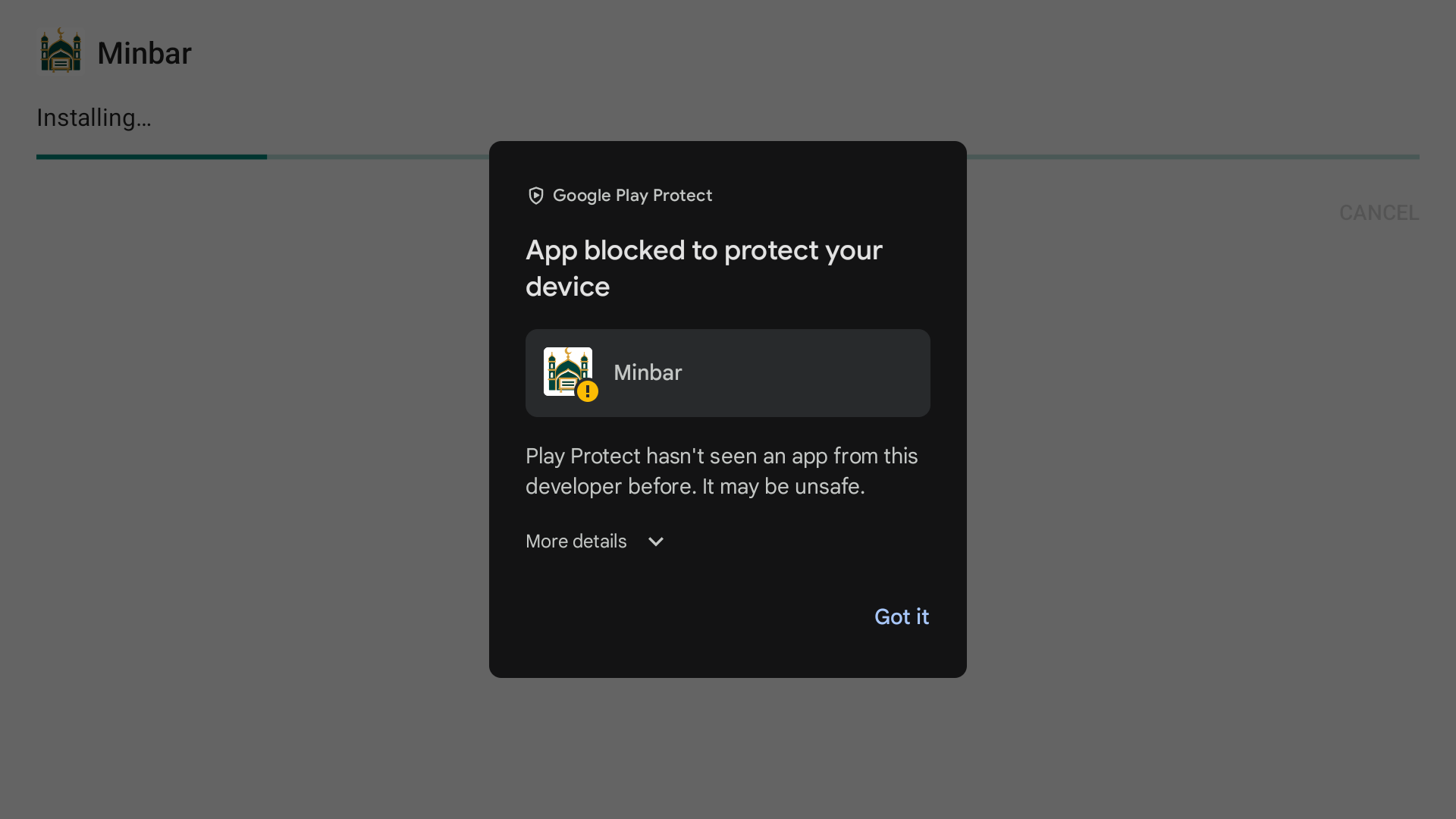
Find the TV installation permissionIf Google offers Scan app, allow the scan and wait for its result. If it says App blocked, harmful, or the developer must be verified, stop. Do not disable Play Protect or change unrelated Developer options. Contact us with your device model and the exact message. This can require a publisher-side fix; repeating the installation is not a solution.
Some newer Android devices have an additional verified-developer installation flow. It is separate from the source permission and may involve a waiting period. Follow Google’s instructions for the exact message on your device, or ask us for help. Google’s installation help
You’ve reached the end of these steps
Check your device before continuing. Reaching this page does not confirm installation or delivery to the TV.
Check your TV is playing the playlist
You have reached the end of the full setup guide. Check the phone’s Received and stored by TV result and the actual TV screen. After successful delivery the TV keeps playing its saved eligible cards without the phone or internet. Completing this website guide alone does not confirm device setup.
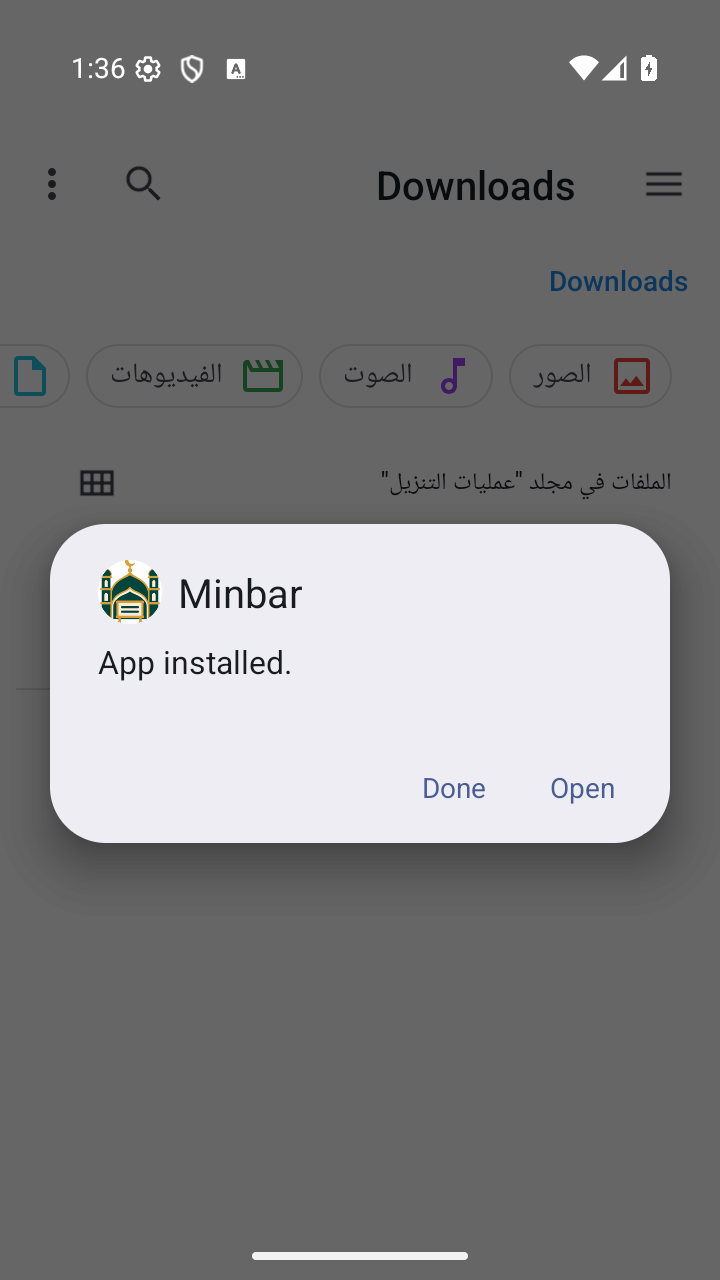
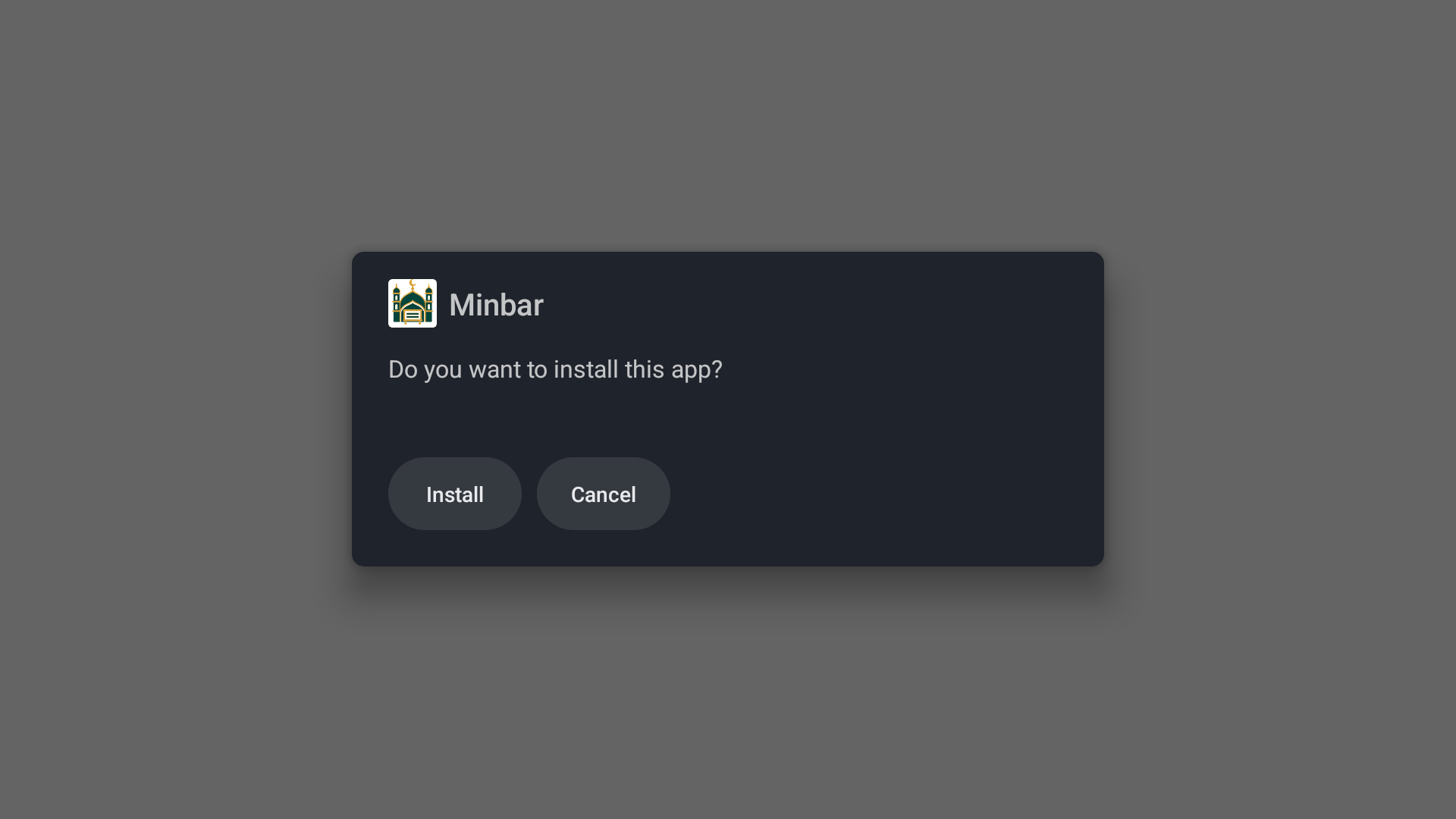
1 of 4 · Install the phone app 2 of 4 · Install the Android TV app 3 of 4 · Connect the phone and TV 4 of 4 · Choose languages and send a playlist No browser on your TV? Open the other installation methods. The picture shows the installation prompt to expect after you open the downloaded TV APK. If Android asks for source permission first, the next step shows that setting. Choose your device Android TV / Google TV · Choose a method Guide finished Allow the installationInstall and open MinbarCheck the TV’s clockPrepare to connect the phone Open the website on your TVOpen the TV installation file Download the TV file on your phonePrepare a file-transfer appSend the file to your TVOpen the received file on the TV Copy the file to a USB stickOpen the file on your TVExample screens from an Android phone and Android TV. Your device or file app may look different. Use the outlined control or filename.
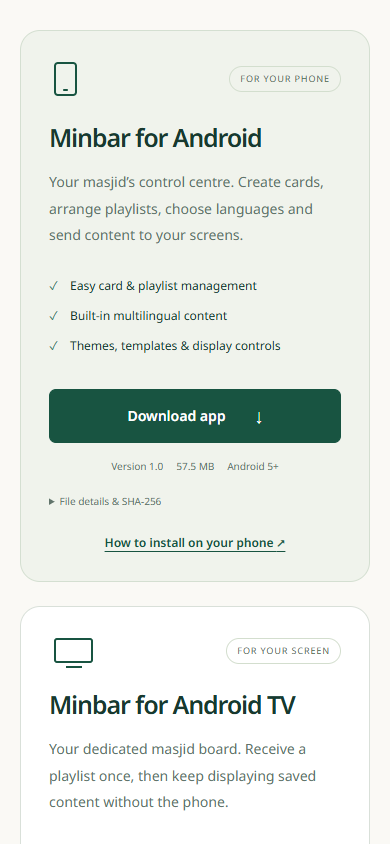
Example screens from an Android phone and Android TV. Your device or file app may look different. Use the outlined control or filename.
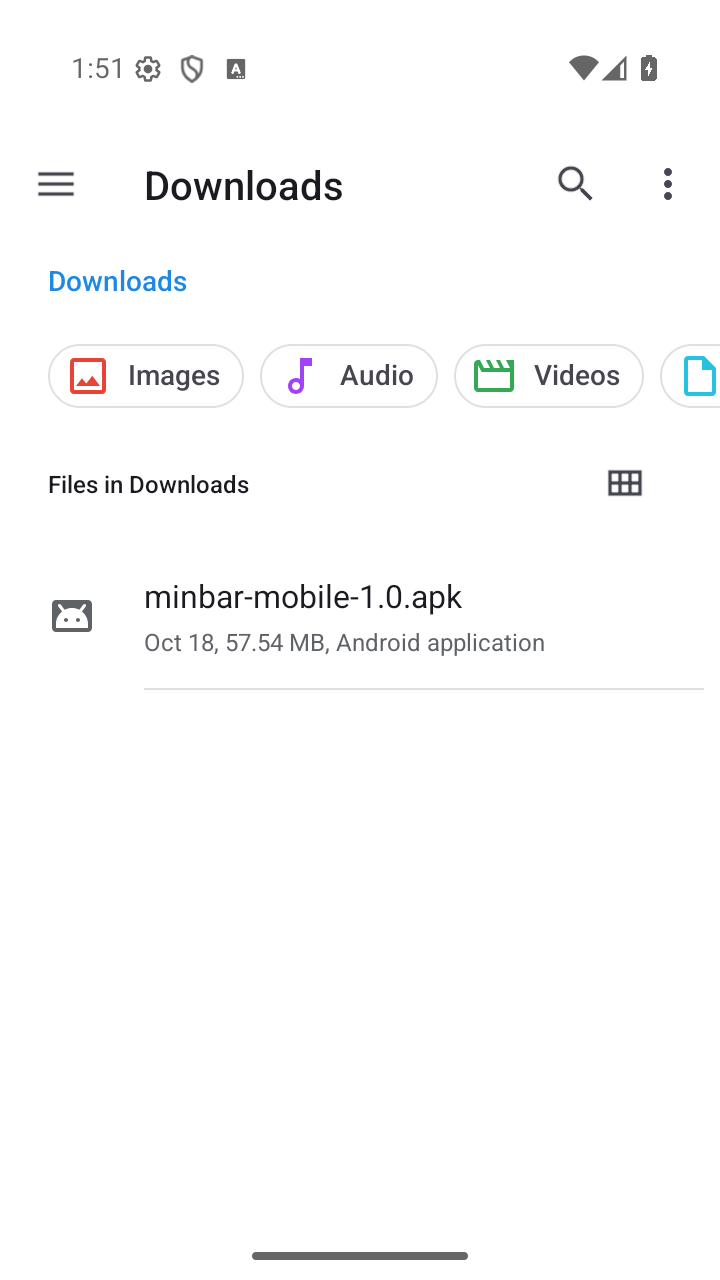
Example screens from an Android phone and Android TV. Your device or file app may look different. Use the outlined control or filename.
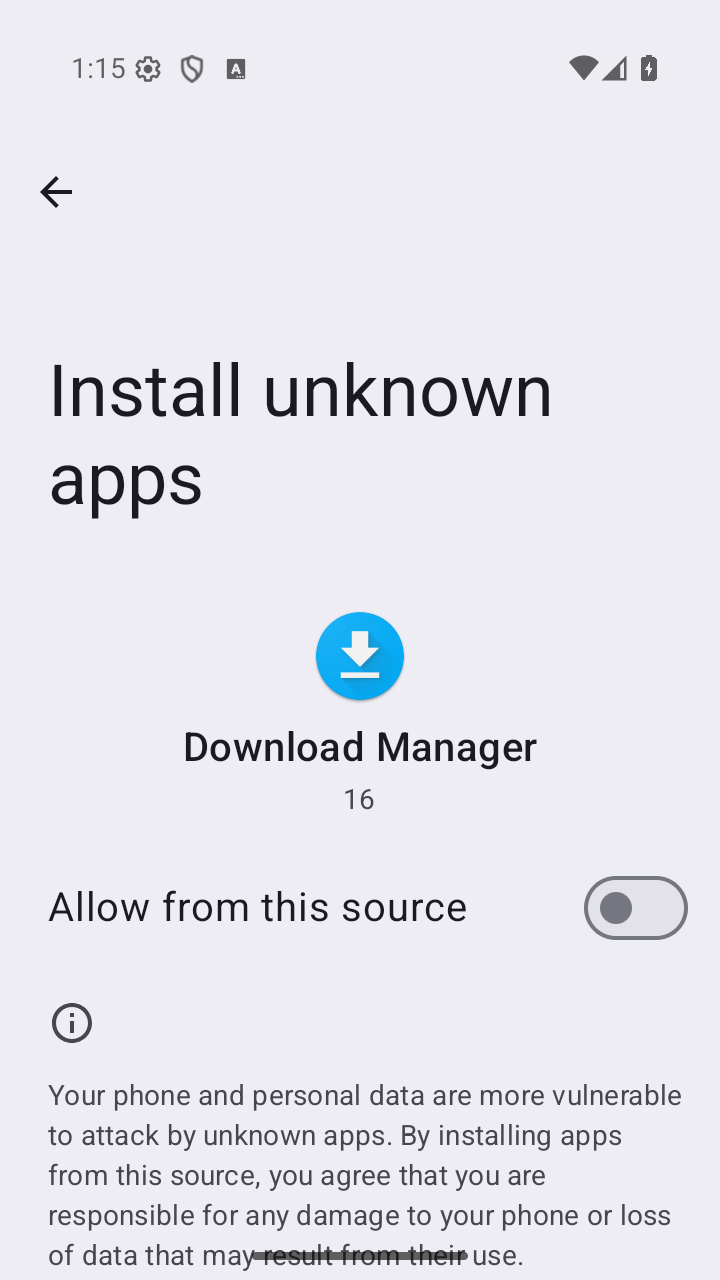
Example screens from an Android phone and Android TV. Your device or file app may look different. Use the outlined control or filename.
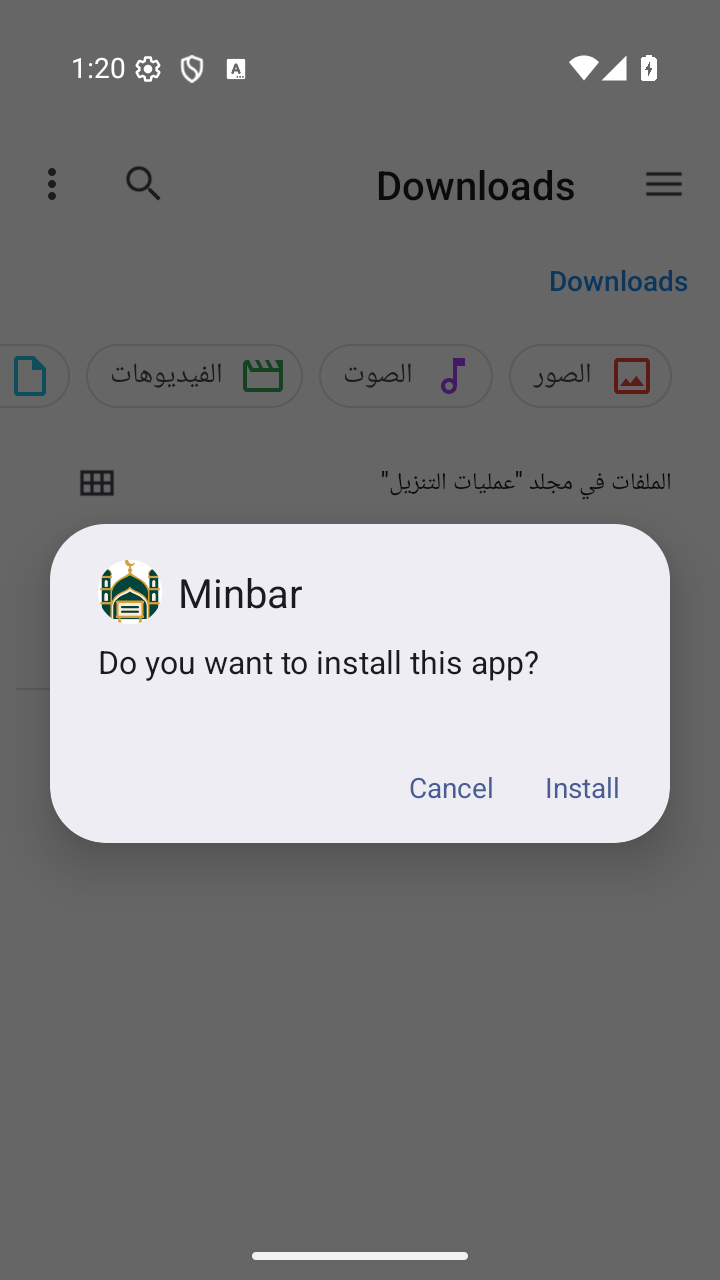
Example screens from an Android phone and Android TV. Your device or file app may look different. Use the outlined control or filename.
Example screens from an Android phone and Android TV. Your device or file app may look different. Use the outlined control or filename.
Example screens from an Android phone and Android TV. Your device or file app may look different. Use the outlined control or filename.
Example screens from an Android phone and Android TV. Your device or file app may look different. Use the outlined control or filename.
Example screens from an Android phone and Android TV. Your device or file app may look different. Use the outlined control or filename.
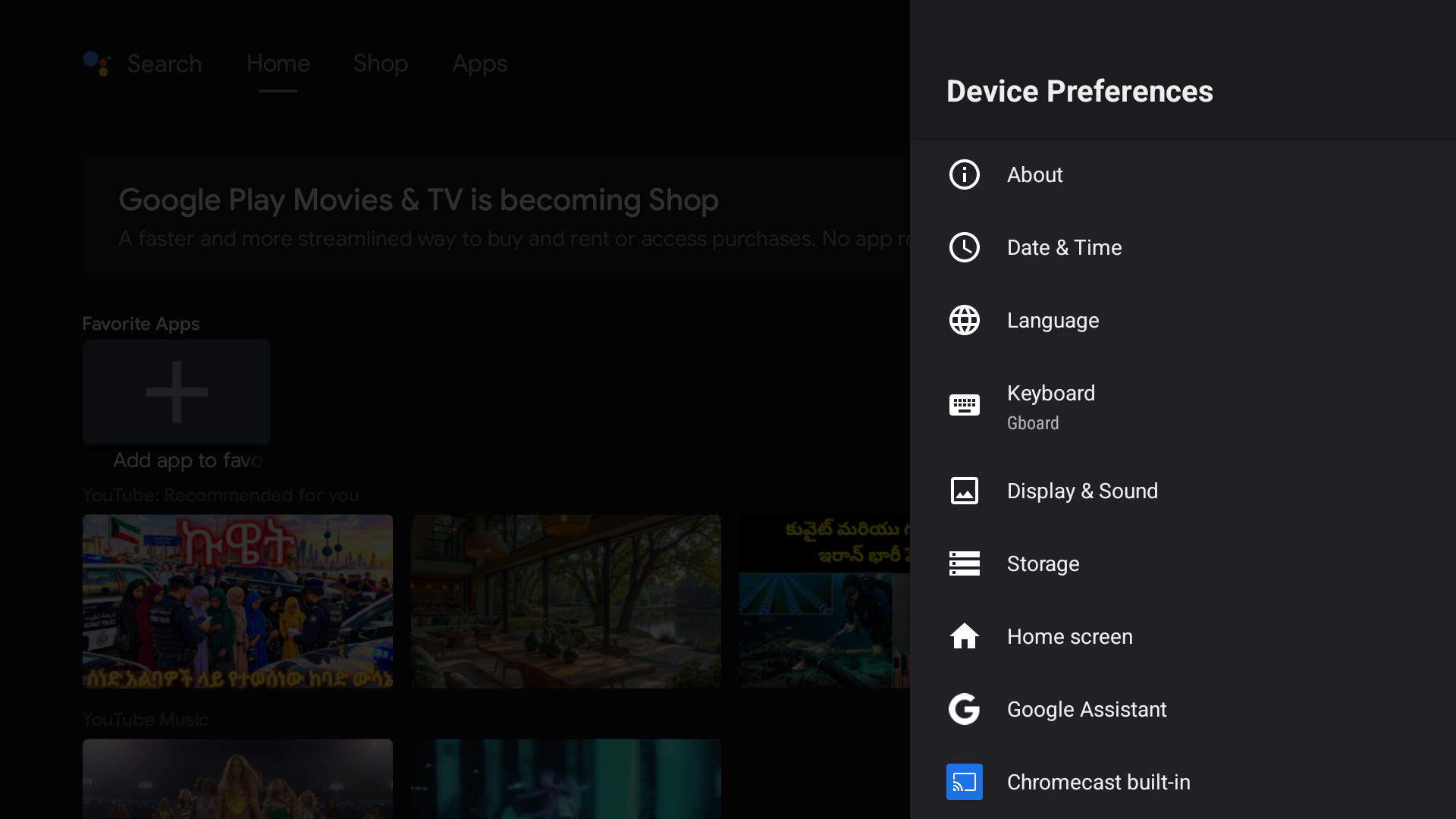
Example screens from an Android phone and Android TV. Your device or file app may look different. Use the outlined control or filename.
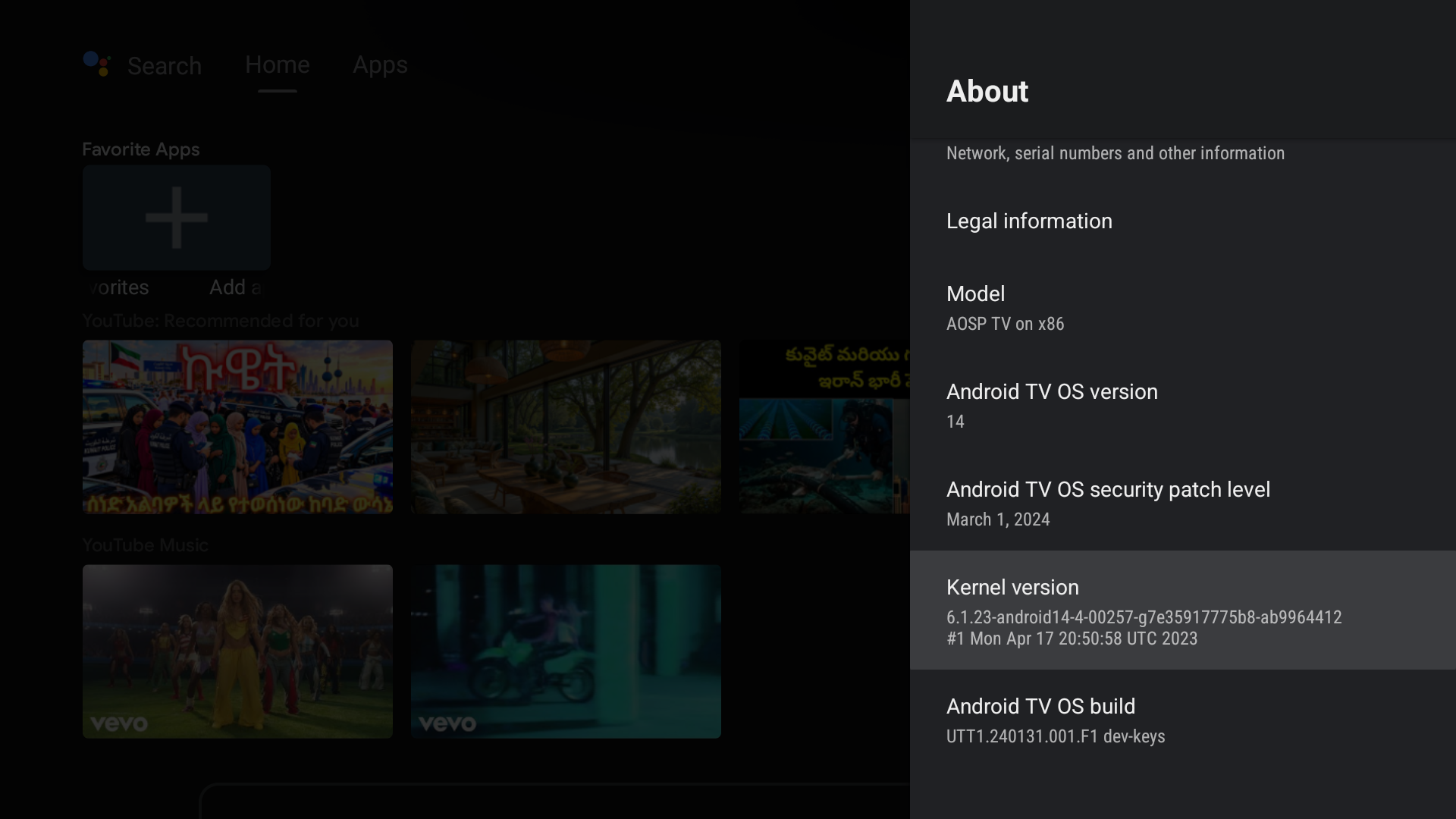
Example screens from an Android phone and Android TV. Your device or file app may look different. Use the outlined control or filename.
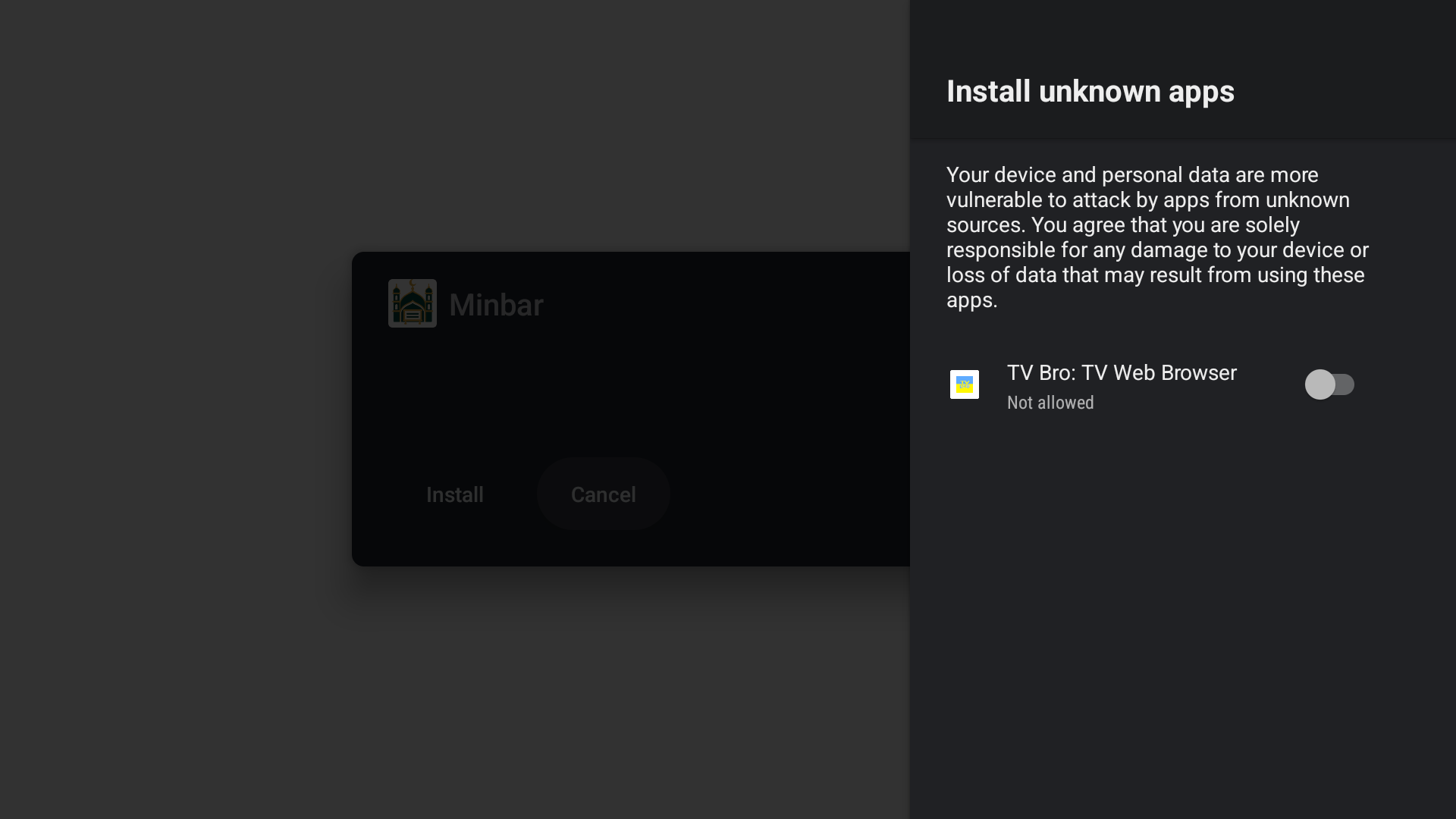
Example screens from an Android phone and Android TV. Your device or file app may look different. Use the outlined control or filename.
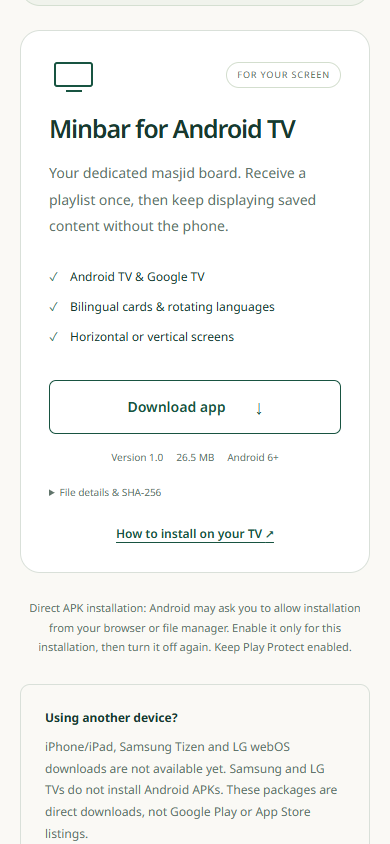
Example screens from an Android phone and Android TV. Your device or file app may look different. Use the outlined control or filename.
Example screens from an Android phone and Android TV. Your device or file app may look different. Use the outlined control or filename.
Example screens from an Android phone and Android TV. Your device or file app may look different. Use the outlined control or filename.
Example screens from an Android phone and Android TV. Your device or file app may look different. Use the outlined control or filename.
Example screens from an Android phone and Android TV. Your device or file app may look different. Use the outlined control or filename.
Example screens from an Android phone and Android TV. Your device or file app may look different. Use the outlined control or filename.
Example screens from an Android phone and Android TV. Your device or file app may look different. Use the outlined control or filename.
Example screens from an Android phone and Android TV. Your device or file app may look different. Use the outlined control or filename.
Example screens from an Android phone and Android TV. Your device or file app may look different. Use the outlined control or filename.
Example screens from an Android phone and Android TV. Your device or file app may look different. Use the outlined control or filename.
Example screens from an Android phone and Android TV. Your device or file app may look different. Use the outlined control or filename.
Example screens from an Android phone and Android TV. Your device or file app may look different. Use the outlined control or filename.
Example screens from an Android phone and Android TV. Your device or file app may look different. Use the outlined control or filename.
Example screens from an Android phone and Android TV. Your device or file app may look different. Use the outlined control or filename.
Example screens from an Android phone and Android TV. Your device or file app may look different. Use the outlined control or filename.
Example screens from an Android phone and Android TV. Your device or file app may look different. Use the outlined control or filename.
Example screens from an Android phone and Android TV. Your device or file app may look different. Use the outlined control or filename.
Example screens from an Android phone and Android TV. Your device or file app may look different. Use the outlined control or filename.
Example screens from an Android phone and Android TV. Your device or file app may look different. Use the outlined control or filename.
Example screens from an Android phone and Android TV. Your device or file app may look different. Use the outlined control or filename.
The guided view could not load. You can still follow the full instructions below.
Let’s start with your device.
Choose what you want to install on. We’ll show you the right instructions. You do not need an account on this website.
Not sure which TV you have? Look for the model name on its back or in Settings → About. Email us the model name and we can help you choose. You do not need to find an IP address. admin@thetechidea.app
You only install once: set up the phone, set up the TV, then send your first playlist. Internet is needed for downloads. After setup, the phone and TV use the same Wi-Fi to send content; saved TV playback works without the phone or internet.
Before downloading: what do I need?
What you need
- Phone: an Android phone (Android 7 or later). Use the mobile APK, not the TV APK.
- TV: Android TV or Google TV (Android 7 or later), or a compatible Android TV box connected by HDMI. Check Settings → About to identify the TV operating system. Samsung Tizen and LG webOS do not install these APKs; their native downloads and iPhone/iPad downloads are not available yet.
- Keep the remote nearby and allow enough free storage for downloading and installing. To send content later, both devices must be on the same local network with device-to-device communication allowed.
- Menu names vary by brand and Android version. Keep Google Play Protect enabled. If it reports that a file is harmful, stop and contact support; do not disable protection to continue.
1. Install on your Android phone
- Download the phone app. You do not normally need Developer options or USB debugging on an Android phone to install this APK. Android will ask for an installation permission when you open the file. Open this page on your phone and tap Download phone app below. Wait until the download finishes. This downloads an installation file; it is sometimes called an APK. Download phone app
- Open the downloaded file. Tap the download notification. If you cannot find it, open Files or My Files, then Downloads, and tap the file whose name starts with minbar-mobile.
- Allow this installer when asked. If your phone asks whether this app may install files, tap Settings in that message, switch on Allow from this source, then go back to the downloaded file. Menu names may differ. If you cannot find this option, contact support with your phone model.
- Install and open Minbar. Choose Install, wait for installation to finish, then choose Open. You can also find Minbar in the phone’s app list.
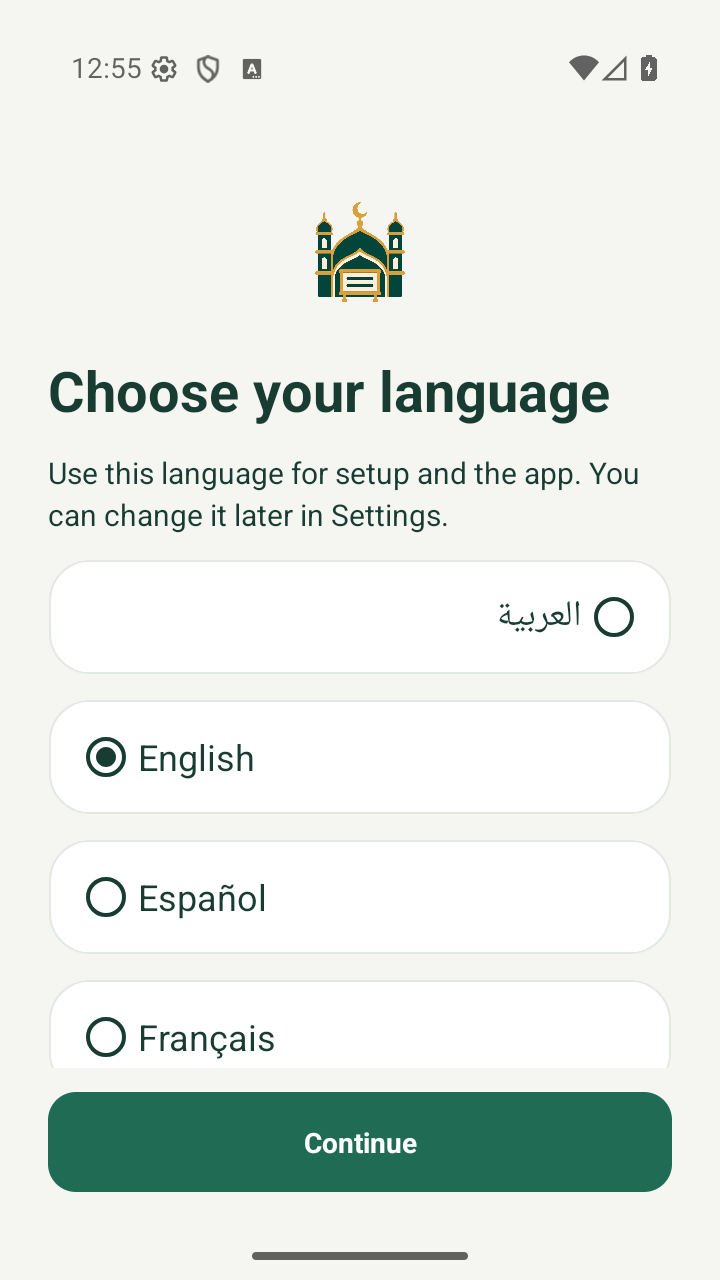
- Finish the first-run steps. Select the app language, follow onboarding and wait for the labelled loading stages. Complete the local masjid/administrator setup shown by the app. This setup belongs to the app, not a website registration.
- Restore the installer permission. Return to Install unknown apps and turn off Allow from this source for the browser/file manager. Camera and photo permissions are only needed when you choose those features in Minbar.
Prepare Android TV / Google TV
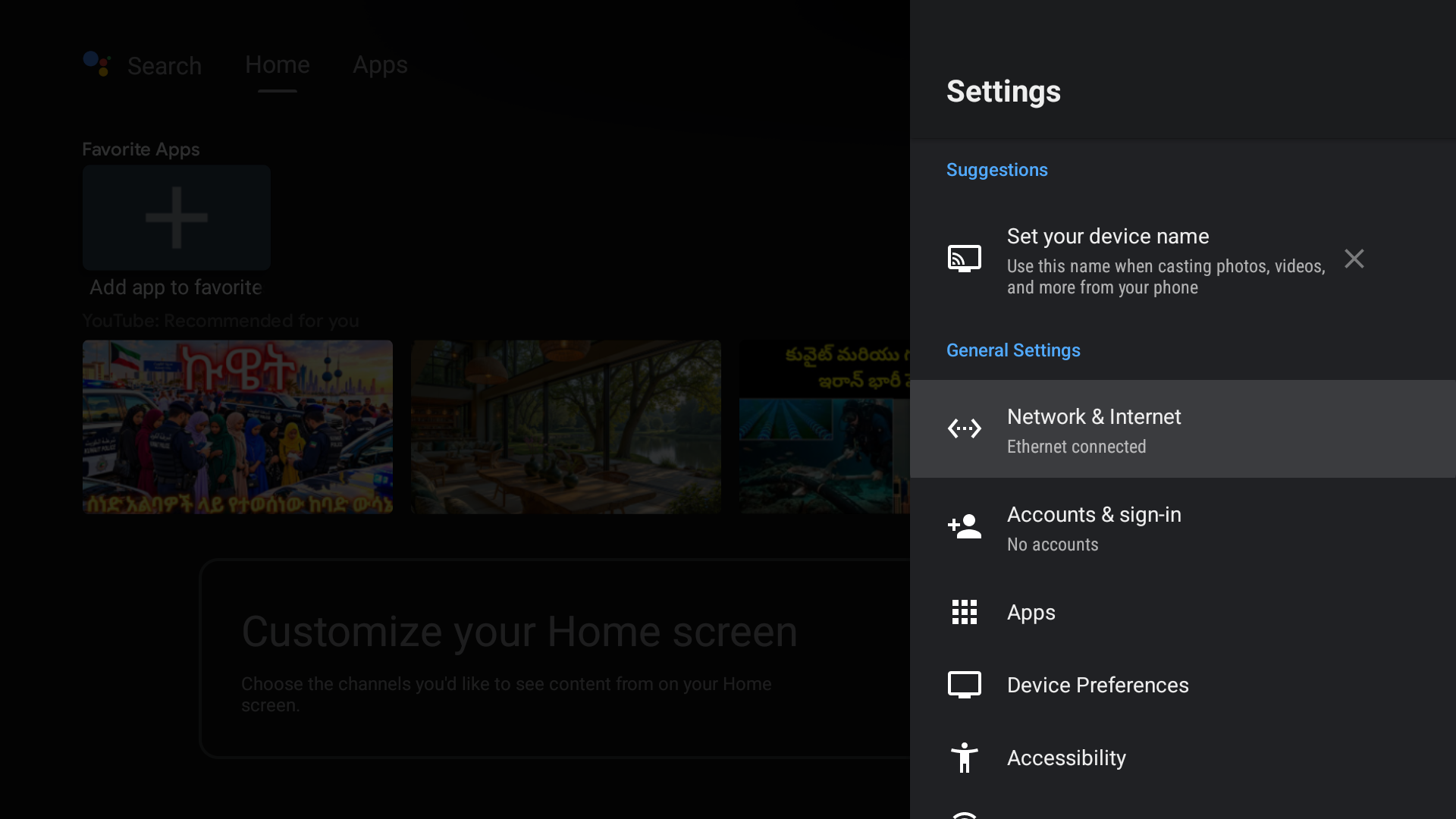
- Open the TV’s SettingsUse the remote to open Settings (the gear symbol) from the TV home screen. These steps are for Android TV / Google TV. Samsung Tizen and LG webOS use different procedures.
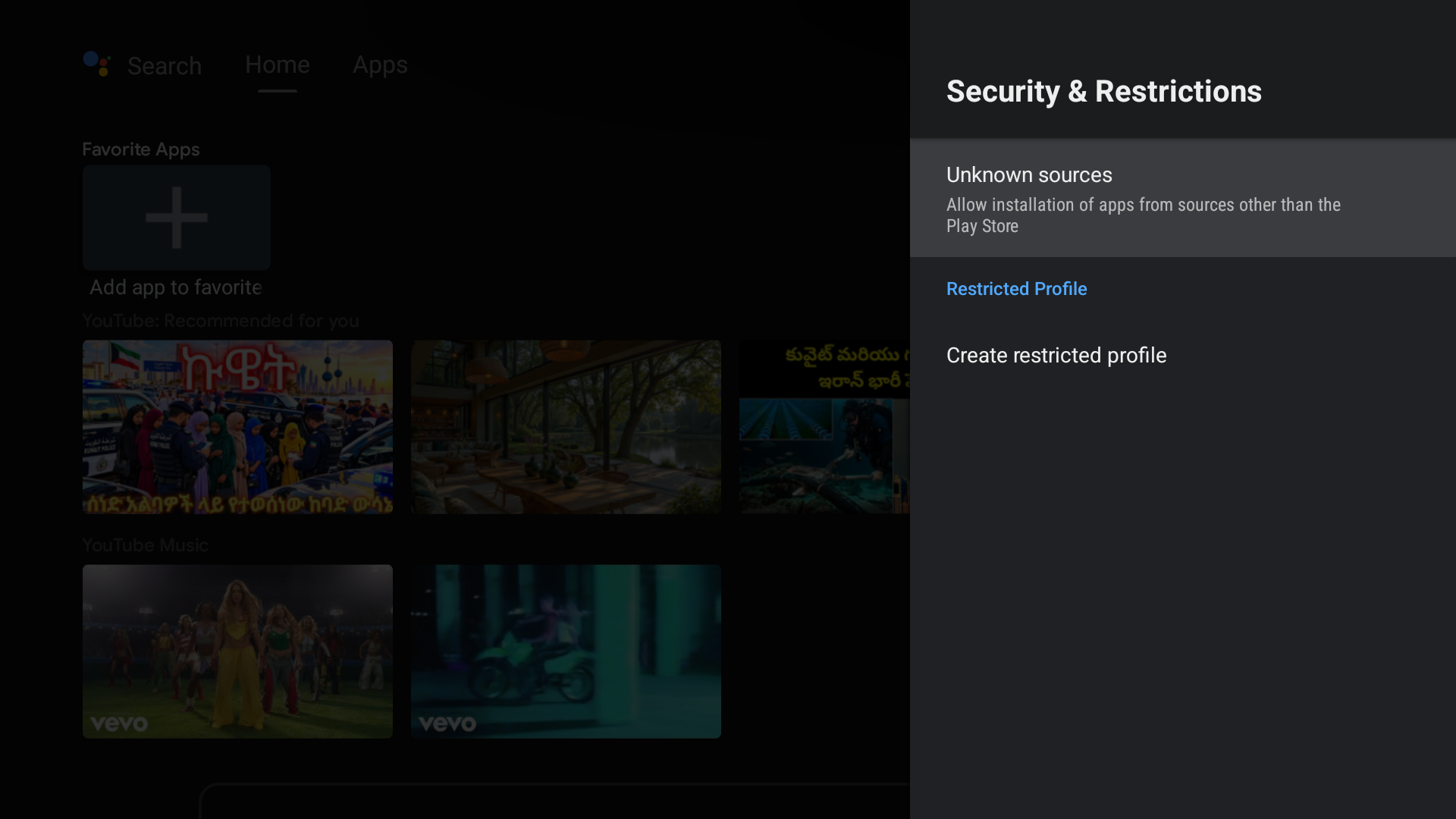
- Check whether the installation option is already visibleLook under Apps → Special app access → Install unknown apps, or Device Preferences → Security & restrictions → Unknown sources. Menu names vary. If you can see it, you can skip the developer steps. You will allow only the app that opens the installation file when asked. I can see it — continue
- If it is hidden, find AboutGo back to Settings, then open System → About. On some TVs the path is Device Preferences → About. Look for Android TV OS build or Build. This is different from the app’s version number.
- Select the build row seven timesWith Android TV OS build / Build selected, press the remote’s OK button about seven times, until the TV says You are now a developer. If it says you are already a developer, continue. If it requests a PIN, the TV owner must enter it on the TV; do not send it to us.
- Return to the installation permissionGo back to Apps / Security & restrictions and look for Install unknown apps / Unknown sources again. Continue below to choose how to get the TV file. When the TV asks, allow only that browser or file app. Keep USB/network debugging off and leave Play Protect on. If the option is still unavailable or managed by an organization, contact the TV owner/support instead of changing other settings.
2. Install on Android TV / Google TV
First, get the TV installation file onto the TV. Choose just one method below. Then follow ‘Finish installation’. If these steps are unfamiliar, ask someone to help with this one-time setup.
These steps are for Android TV and Google TV. For Samsung or LG’s own system, choose your TV brand above instead.
My TV has a web browser
- If your TV has a browser that supports downloading files, open minbar.thetechidea.app. Choose Minbar for Android TV → Download app.
- Wait for completion, then open the browser’s Downloads or a TV-compatible file manager and select the APK whose name starts with minbar-tv. Continue with the installation steps below.
I want to send the file from my phone
- Download the TV APK on the phone from the TV download card. This is a file for the TV; do not install it on the phone. Download TV APK
- Use a TV-compatible file-transfer tool you trust. If it needs companion apps, install them on the phone and TV through their normal app stores. Those stores/tools may have their own account and permission requirements; Minbar’s website does not require an account.
- Connect both devices to the same Wi-Fi. Put the transfer tool on the TV in Receive mode. On the phone, choose Send, select the downloaded minbar-tv APK and choose your TV from the tool’s device list.
- Wait until transfer completes. Open the received APK on the TV from that tool or a TV file manager, then follow the installation steps below.
I want to use a USB stick
- Copy the downloaded minbar-tv APK to a USB drive using a phone with a compatible USB adapter or another device you already use. Insert the drive into the TV.
- Open a TV-compatible file manager, allow access to that drive if requested, and choose the APK. If the drive is not detected, check the TV manufacturer’s supported ports/formats or use another method. Do not format a drive containing files you need.
Finish installation on the TV
- When the TV says the source cannot install apps, open its Settings button. Allow installation for the browser, file manager or transfer tool that is opening the APK. Look for Install unknown apps / Unknown sources under Apps or Security & restrictions; exact wording varies. If the option is absent or restricted, use the manufacturer’s instructions rather than changing unrelated settings.
- Return to the APK and choose Install. Wait for completion, then choose Open. If needed, open Settings → Apps → Minbar → Open; the player also has an Android TV launcher entry.
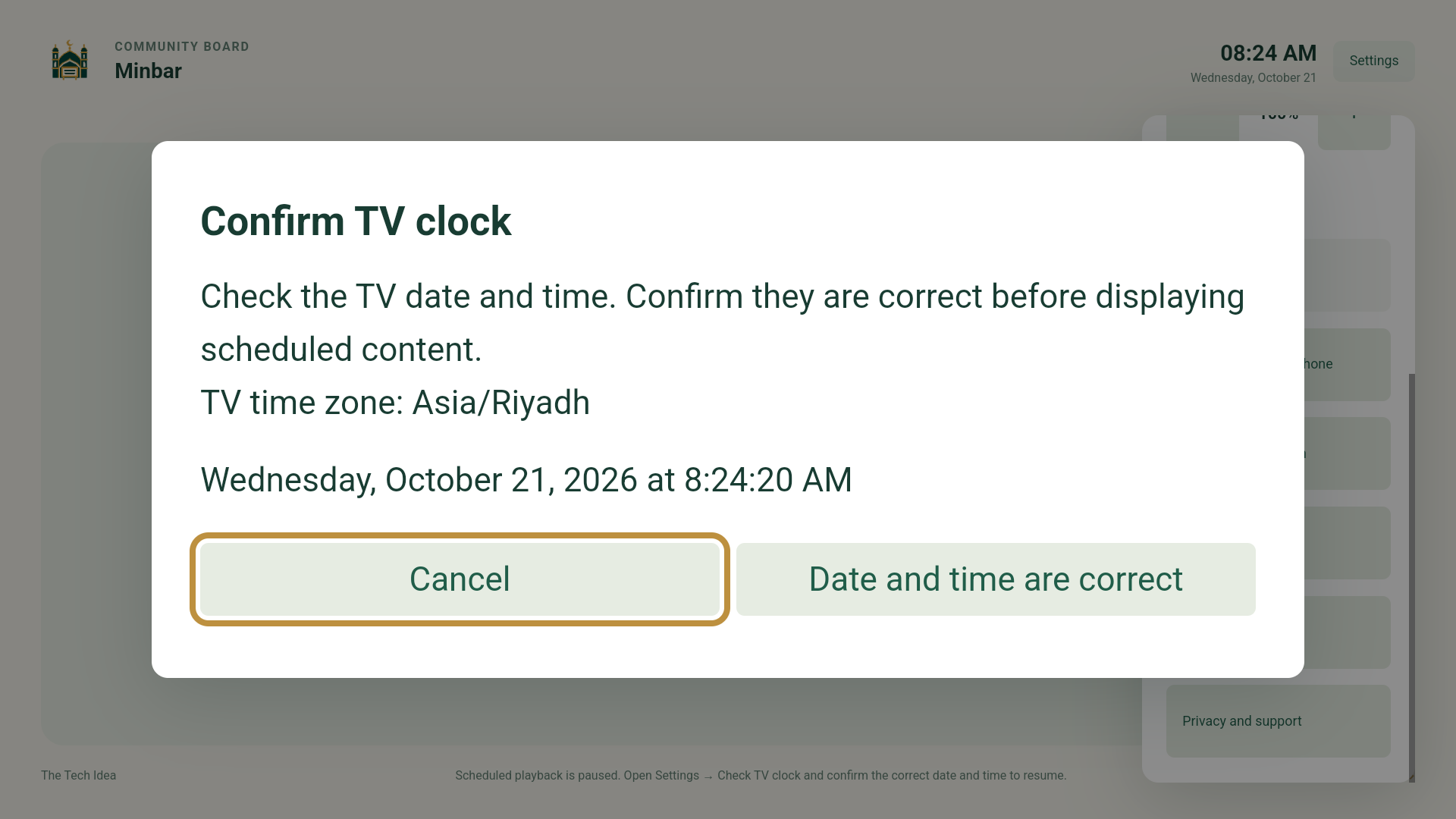
- If Minbar asks you to confirm the clock, check the TV’s real date, time and time zone first. Correct them in TV settings when needed; card start/end dates depend on an accurate clock.
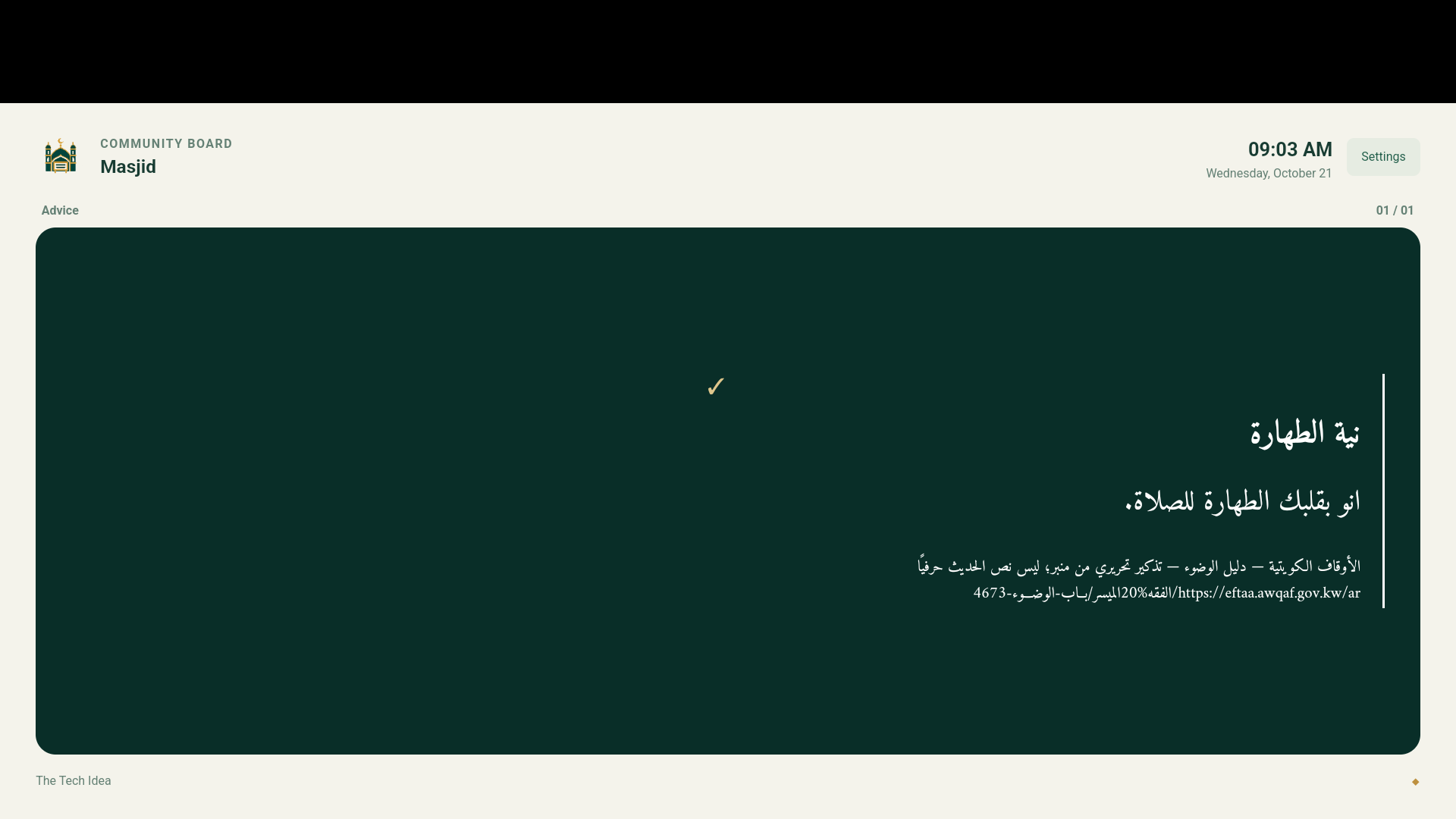
- Use the remote to open Minbar Settings, choose your language and display options, then leave the phone-connection screen ready for pairing. After installation, turn the installer’s unknown-app permission off again and keep Play Protect on.
Samsung TV
Minbar’s Samsung installer is not available here yet.
The Android TV download will not install on Samsung’s Tizen system. Our intended everyday route is installation from Samsung’s TV app store, once the native app is ready and approved. It is not listed there yet.
Can someone install it outside the store?
Technically yes, through Samsung’s developer/testing routes, with specialist setup. Copying a normal Samsung app file (.wgt) to a USB stick does not install it. Samsung has a separate licensed USB demo process. We do not provide a qualified Samsung installer or USB demo package yet; this is not the normal user setup.
Samsung’s installation guidance (English)LG TV
Minbar’s LG installer is not available here yet.
The Android TV download will not install on LG’s webOS system. Our intended everyday route is installation from LG’s TV app store, once the native app is ready and approved. It is not listed there yet.
Can someone install it outside the store?
Yes, LG has a Developer Mode for testing. It needs an LG developer account and a computer. Its session must be maintained; when Developer Mode turns off, its installed test apps are removed. We do not recommend this as permanent offline masjid setup, and we do not offer a qualified LG installer here yet.
LG’s Developer Mode guidance (English)3. Connect and show your first playlist
- Use the same Wi-Fi Connect the phone and TV to your masjid’s same Wi-Fi network and open Minbar on both. Internet is not needed to send a playlist. Avoid a guest network that prevents devices from seeing each other. Keep the phone near you and the TV remote ready.
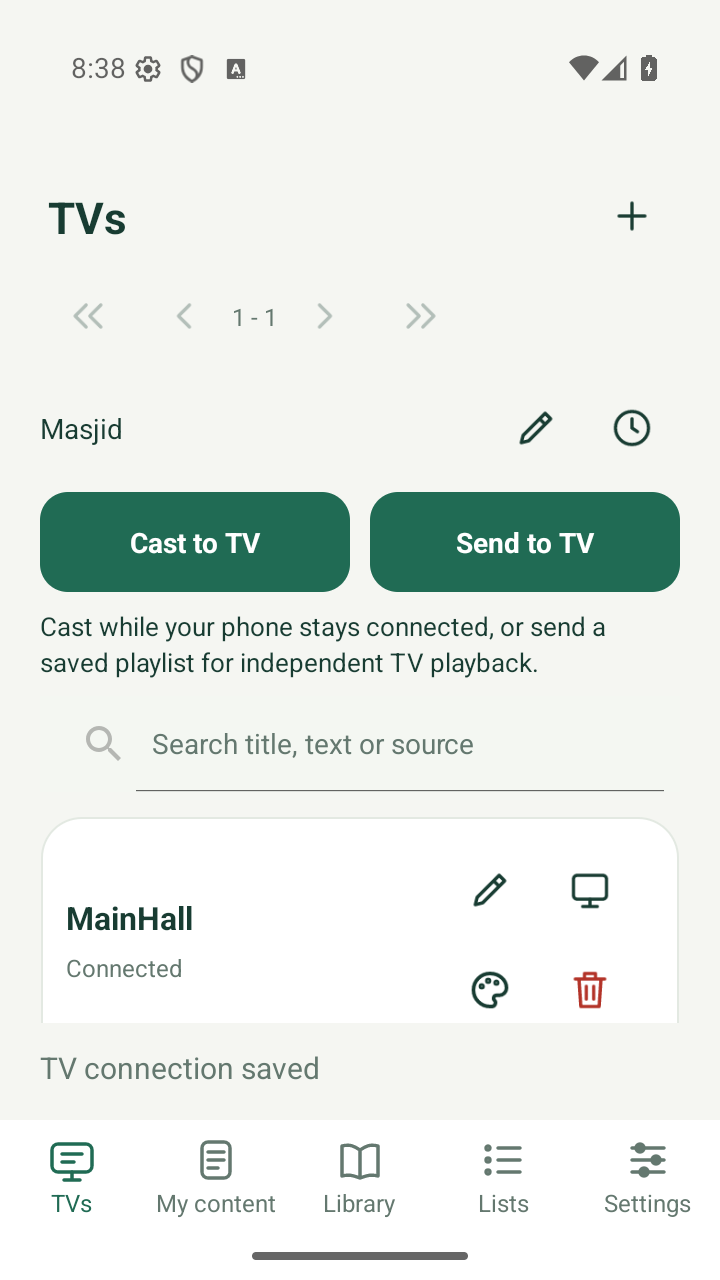
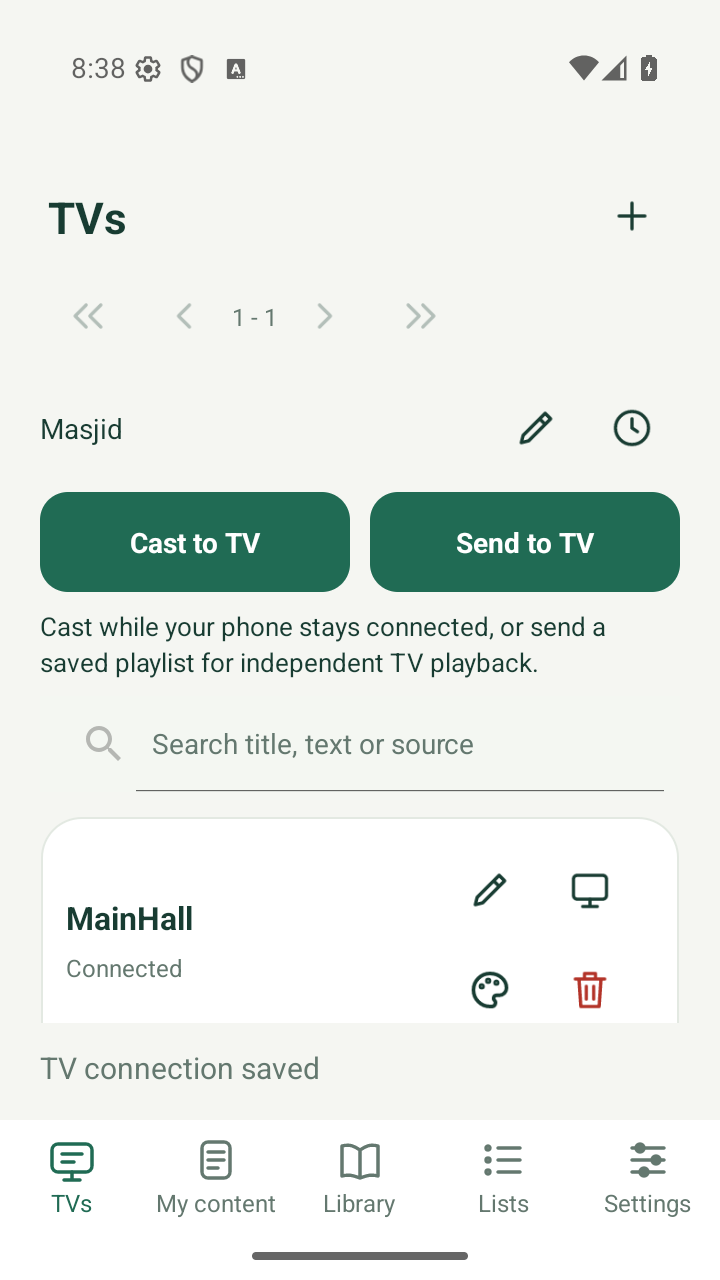
- On the phone: add your TV Tap TVs in the bottom menu, then the + button beside the title. The first time only, Minbar may ask for your masjid’s name: enter it and tap Create. This is a profile saved on your phone, not website registration. If your TV is already listed, you can skip pairing and continue at Choose your playlist languages below.
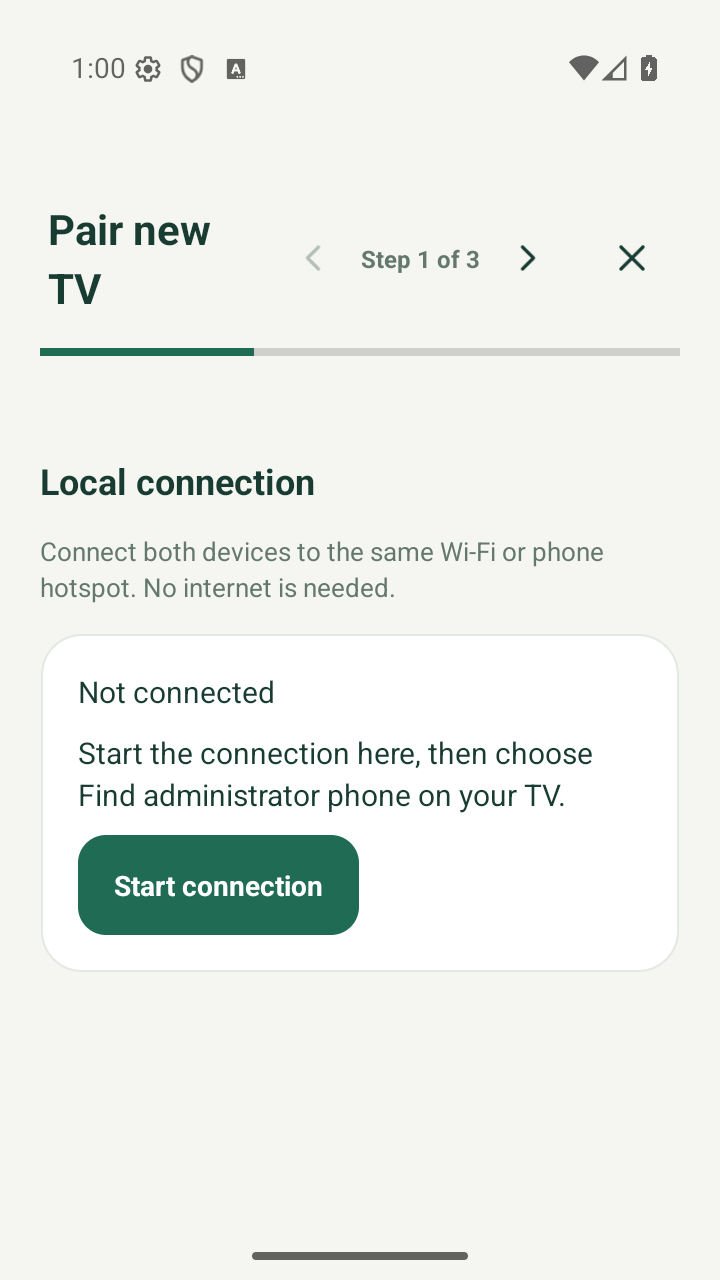
- On the phone: start the connection In Pair new TV, tap Start connection. Leave this screen open. Starting the connection makes this phone available for the TV to find; it does not send a playlist yet.
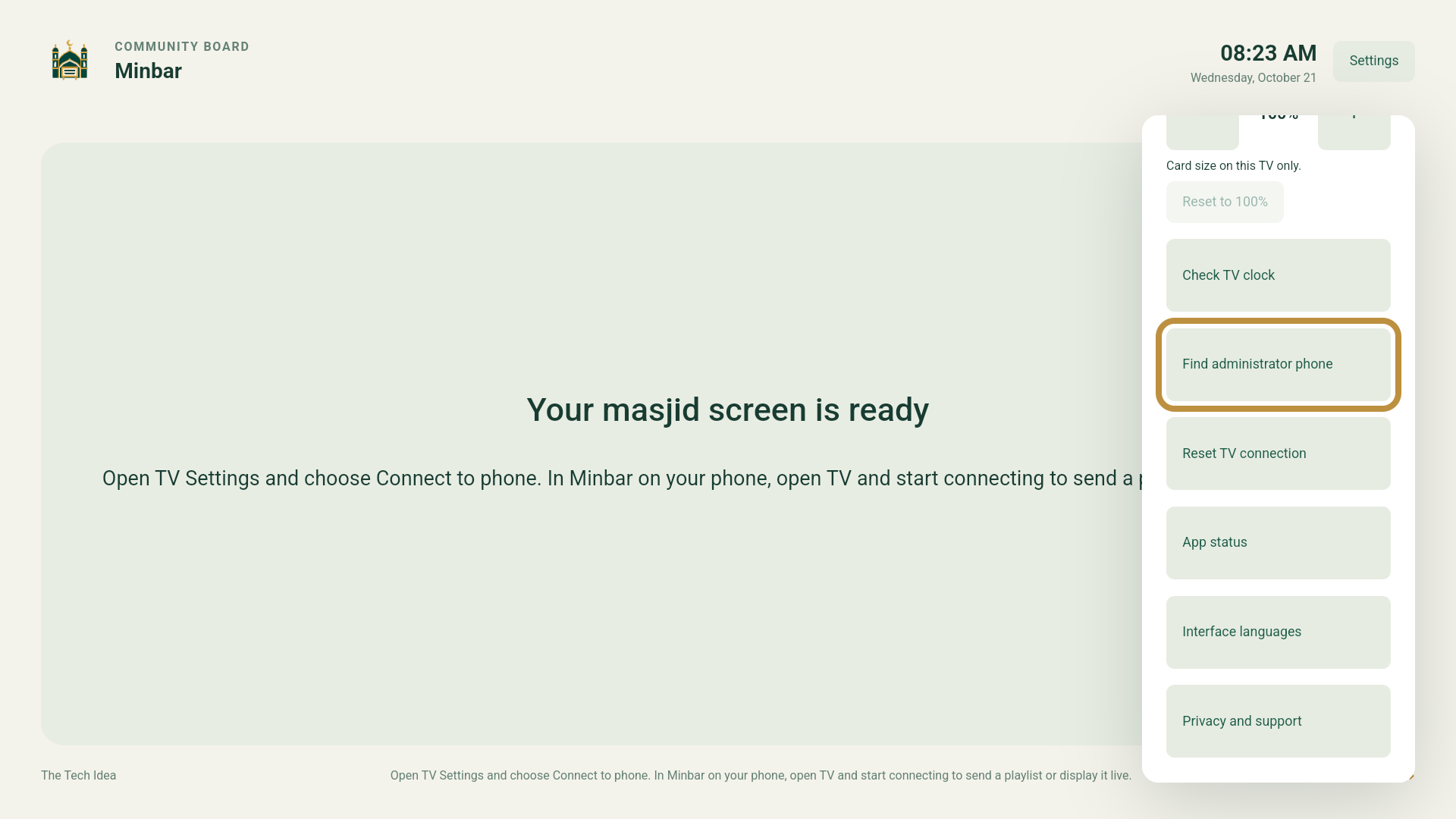
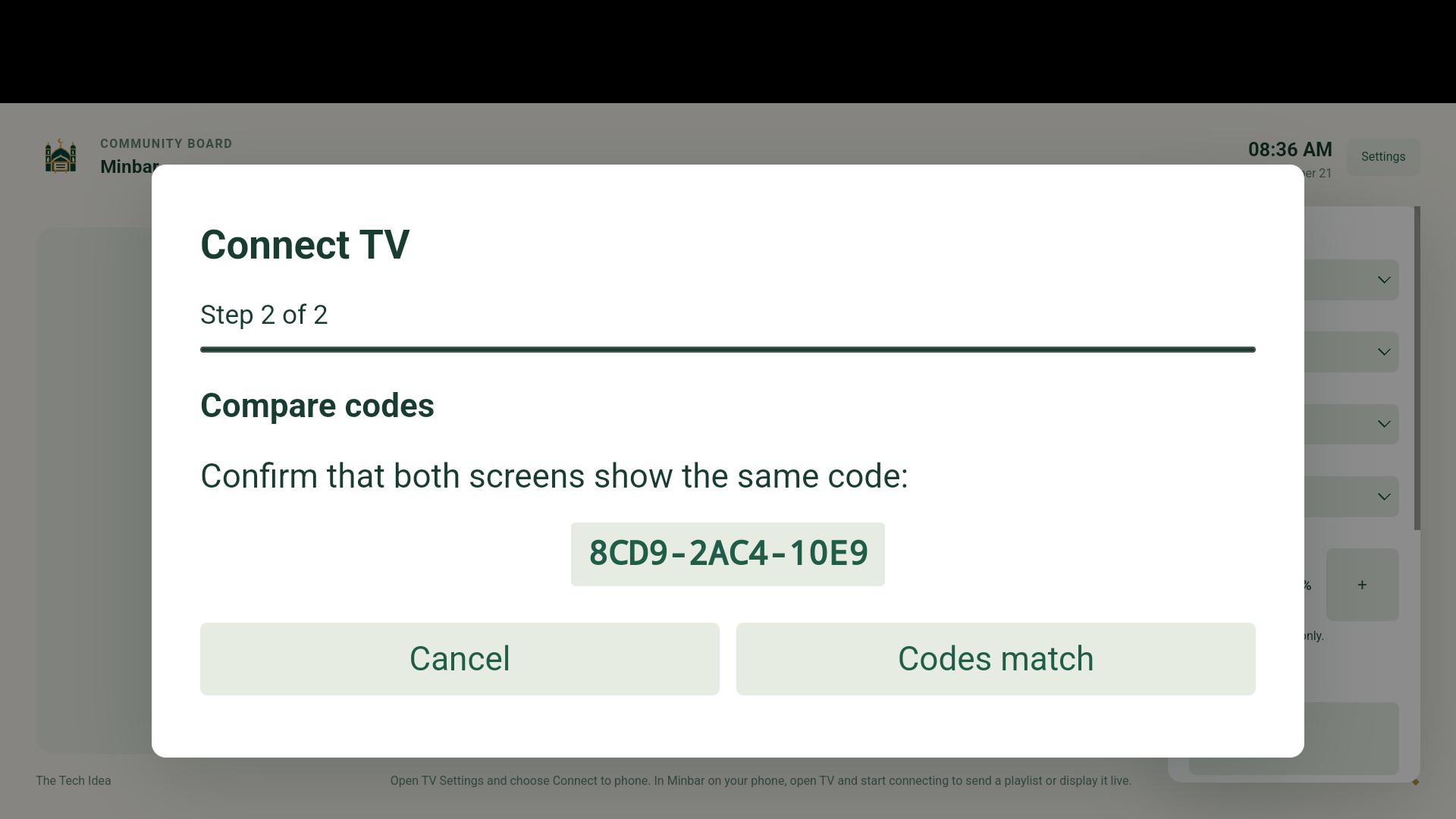
- On the TV: find your phone Using the remote, open Minbar’s Settings, then Find administrator phone. Scroll down inside Settings if the button is lower in the list. Select the phone shown with your masjid’s name. If nothing appears, check the phone still says the connection is running, check both devices use the same Wi-Fi, then search again. You do not need to enter an IP address.
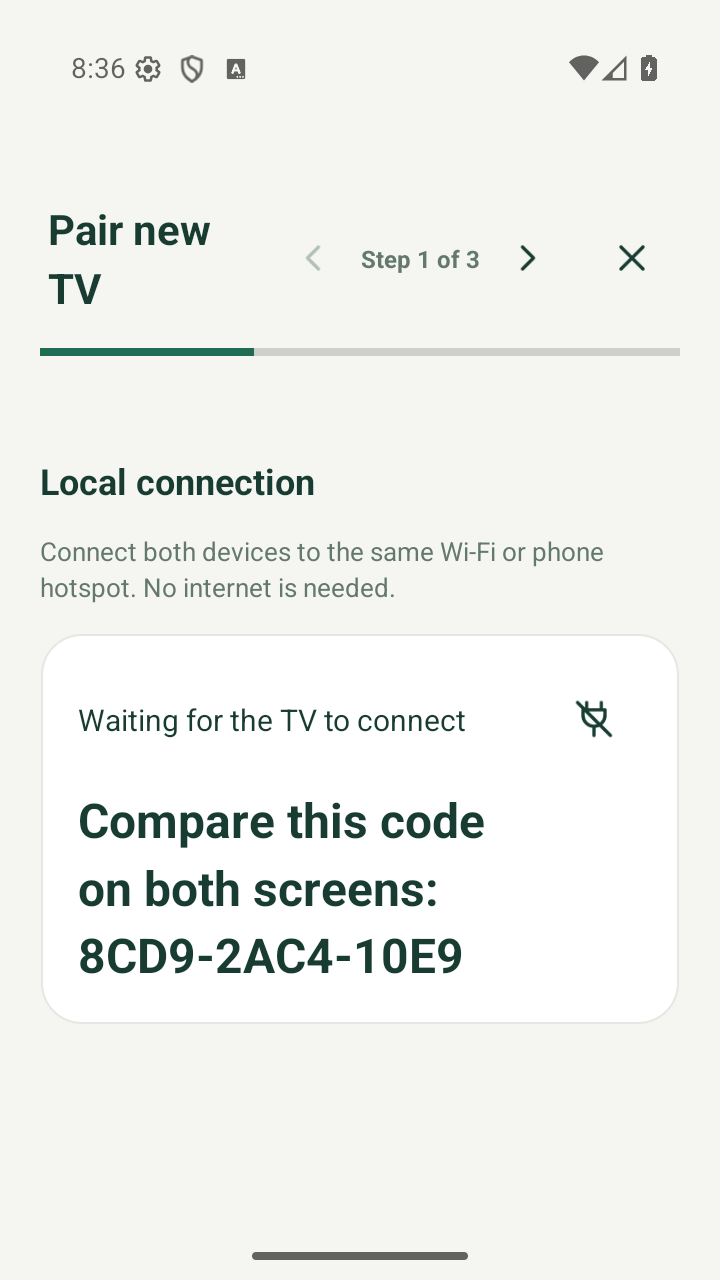
- Compare the codes on both screens Read the code on your phone and the code on the TV. They must match exactly. On the TV, choose Codes match only when they match, then wait for Connected on the phone. Follow any additional confirmation your app shows. The codes in these pictures are expired examples: use the codes currently on your own devices. If they differ or expire, cancel and start a new connection.
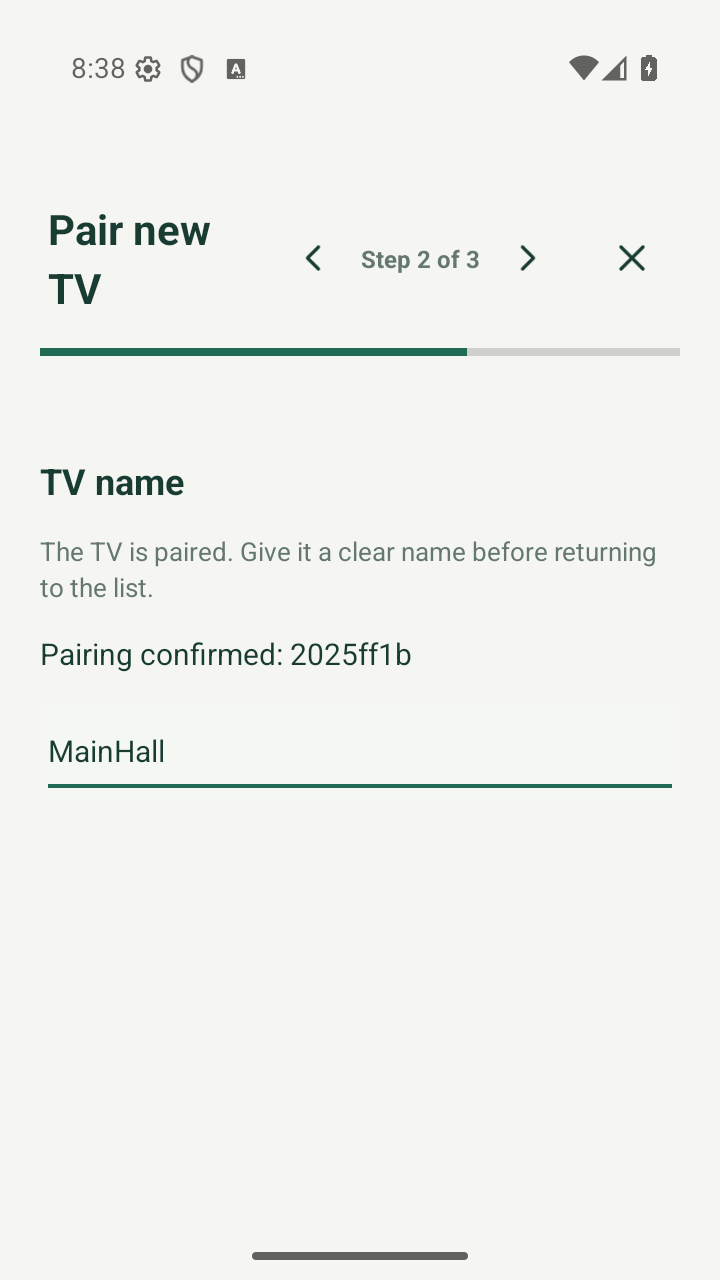
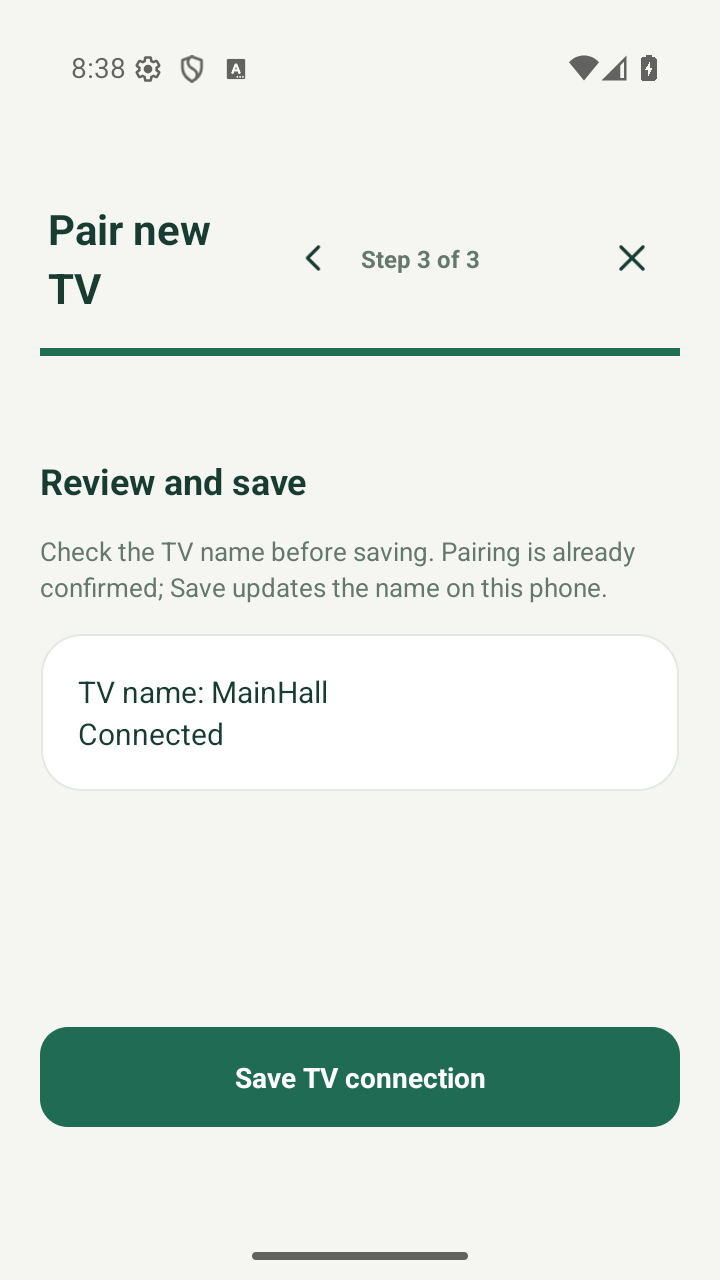
- On the phone: name and save the TV After the connection is confirmed, use the Next arrow beside the step count on the phone. Enter an easy name, such as Main prayer hall, then the Next arrow. Check the summary and tap Save TV connection. The TV should now appear in TVs. You do this once for each TV.
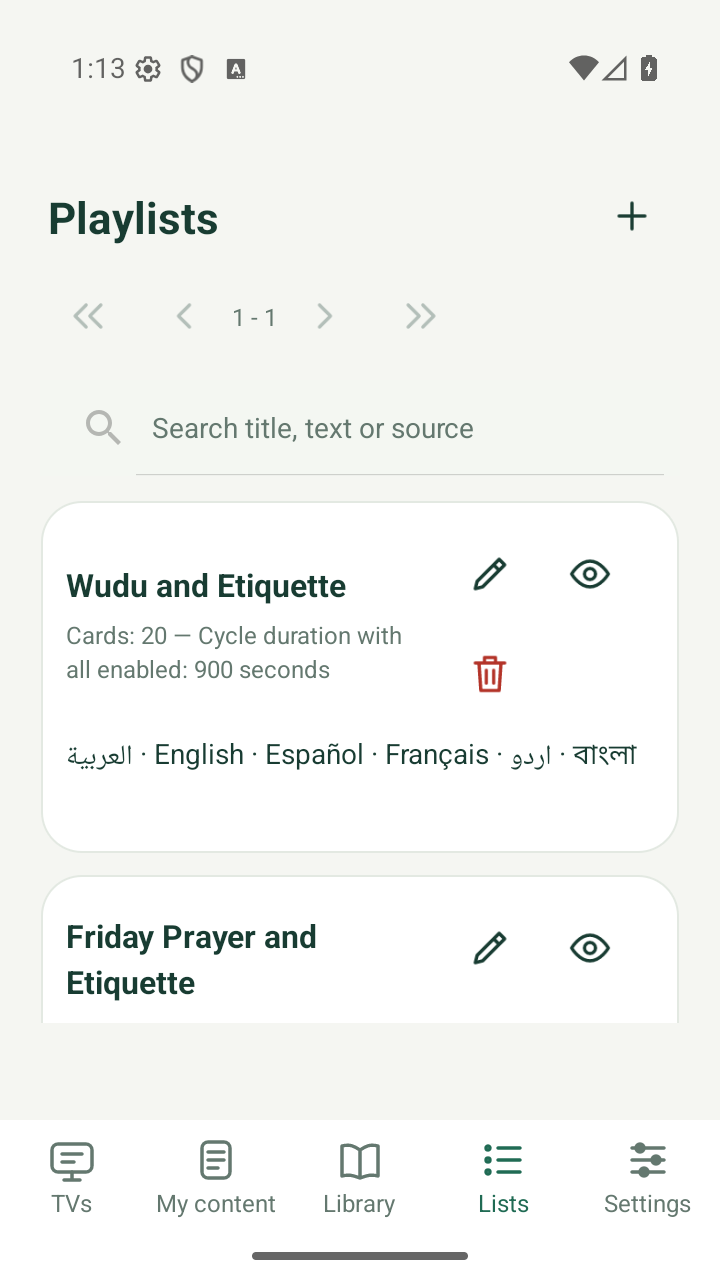
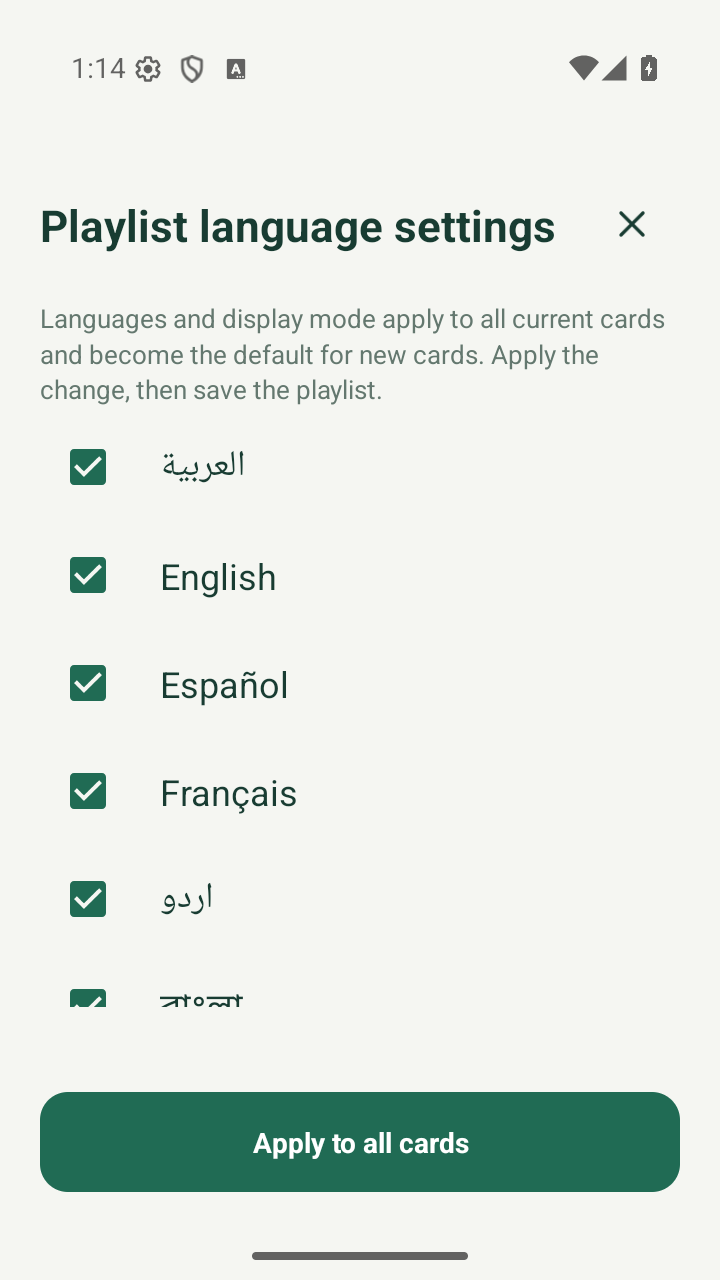
- Choose your playlist languages On the phone, open Lists and tap the pencil beside a ready-made playlist. In its card step, open Playlist language settings. Choose one or more languages, tap Apply to all cards, then finish the playlist steps and Save. For example, selecting Arabic and Urdu applies to all its cards. Saving here prepares the playlist on the phone; the TV changes after you send it.
- On the phone: choose Send to TV Return to TVs and tap Send to TV. This sends a saved playlist for the TV to play independently. Cast to TV is a different option that keeps the phone involved; use Send to TV for this guide.
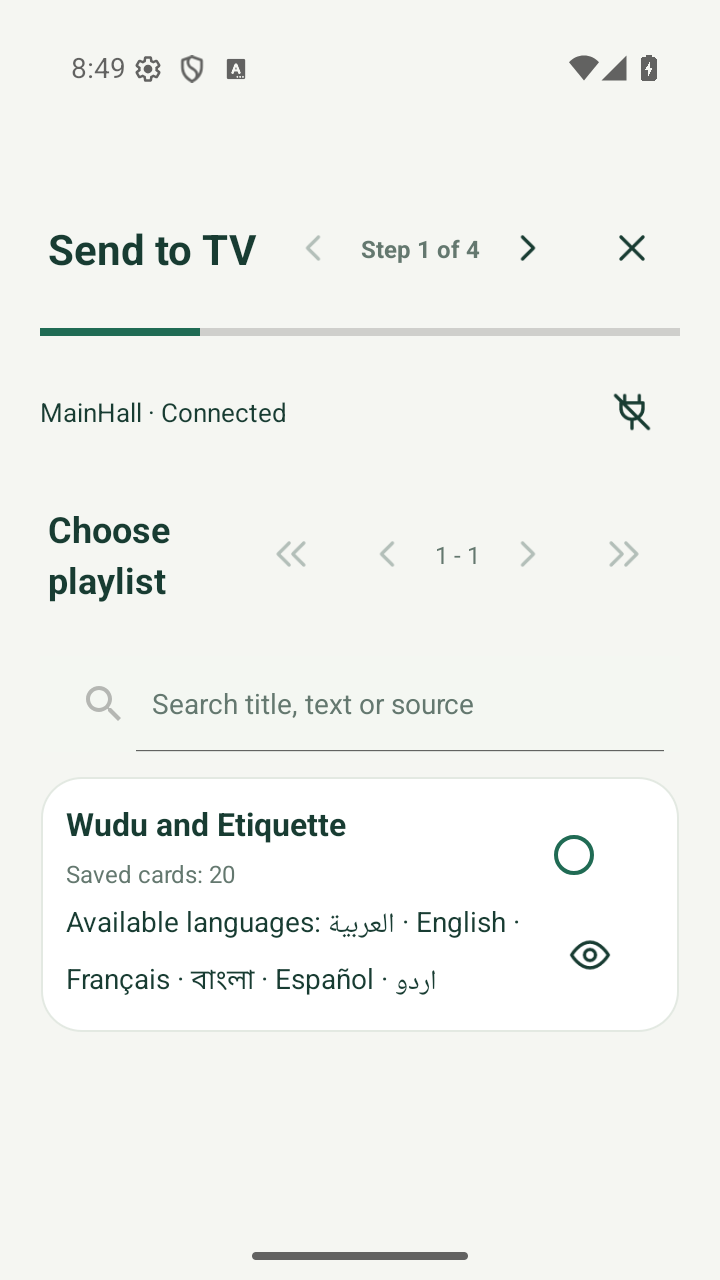
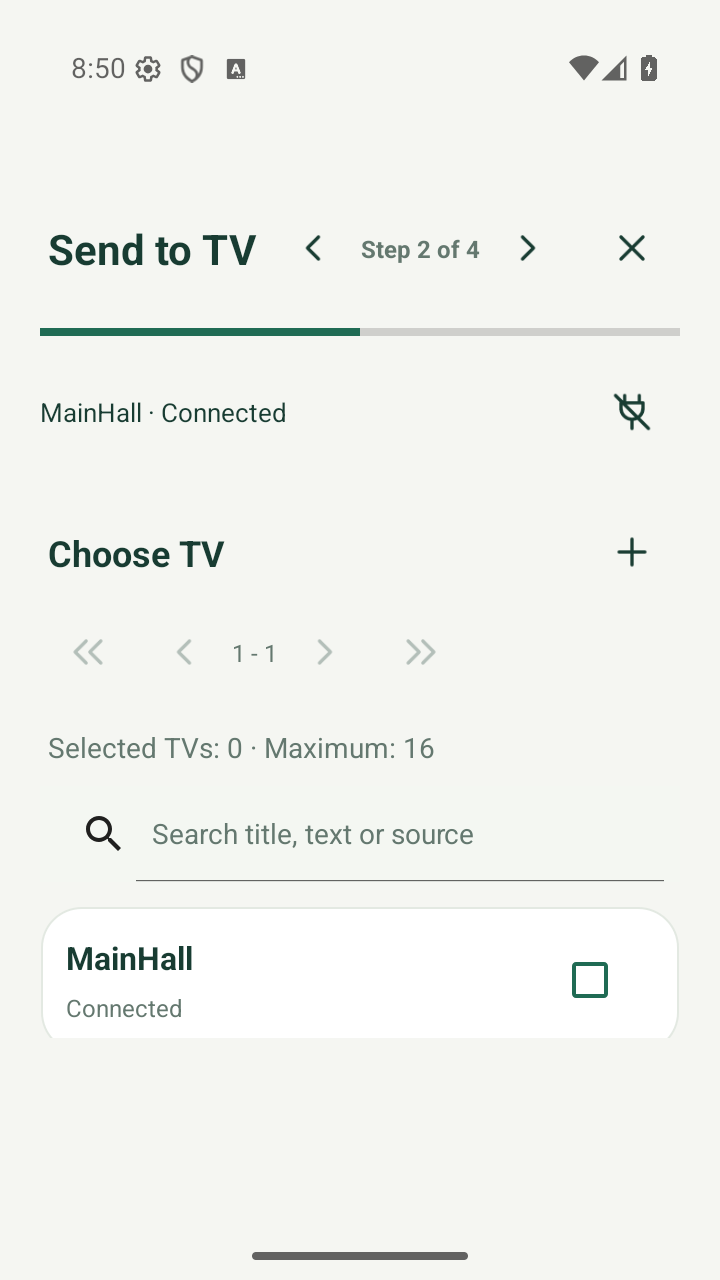
- Choose the playlist and target TV In the send steps, select your saved playlist, then use Next. Select the TV by the name you saved, then Next. For the first try, choose just one TV so you can easily check its screen. Keep the phone connection active; follow any connection message shown before continuing.
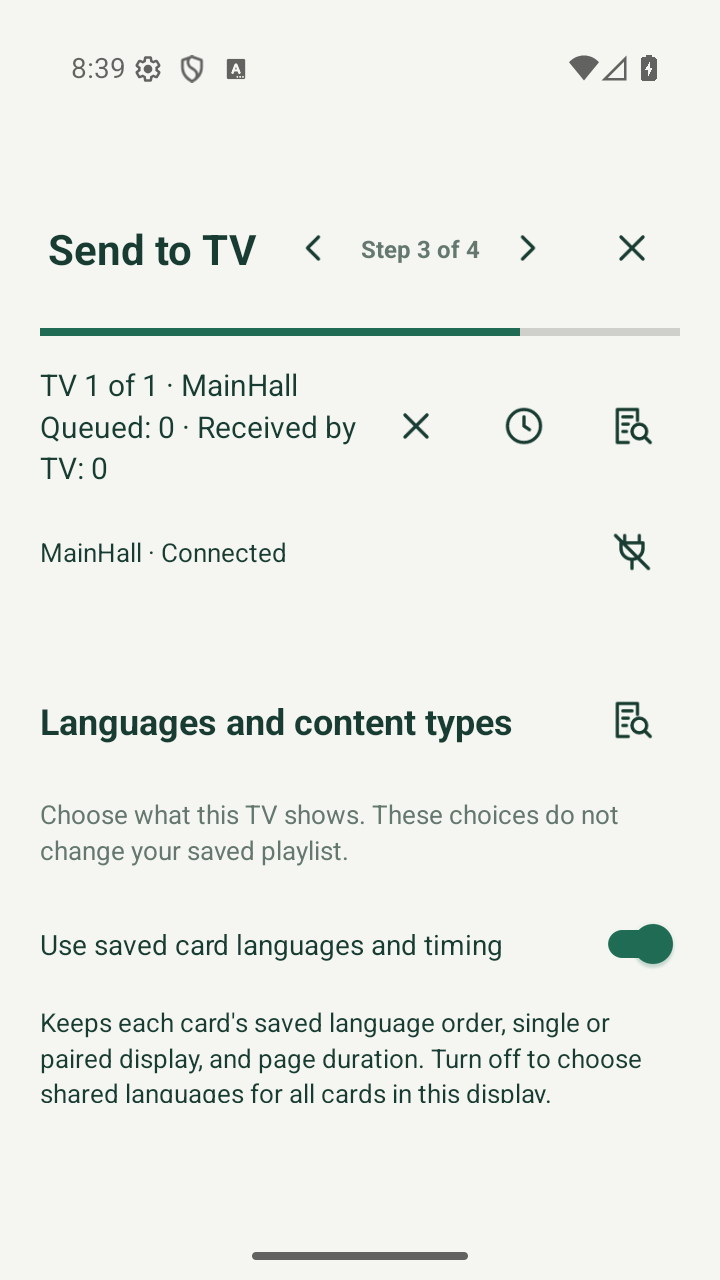
- Review translations if Minbar asks At Languages and content types, you can keep the saved playlist choices. If Next asks for a translation review, tap the review icon beside that title. Open each listed item, read the original and selected translations, and approve only texts you can review. Return with Back when finished. If you are unsure, ask someone who knows the language or return to your playlist and select a language you can review. The guide does not approve texts for you.
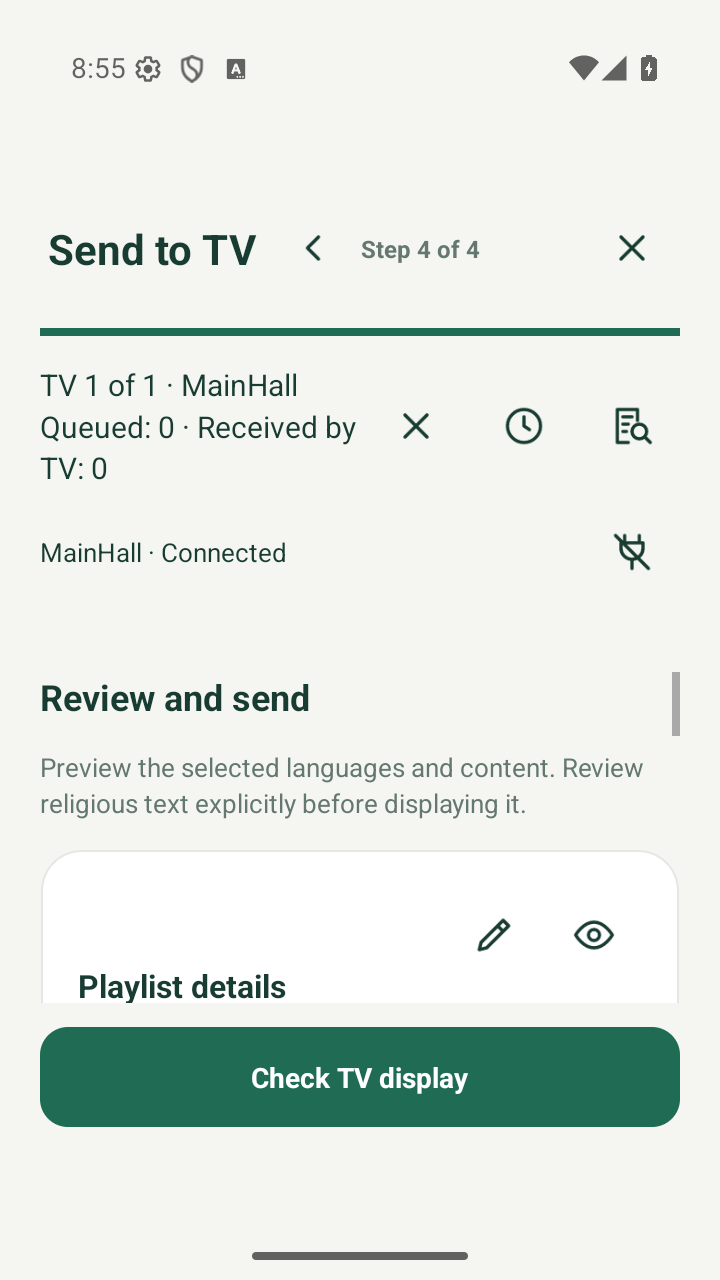
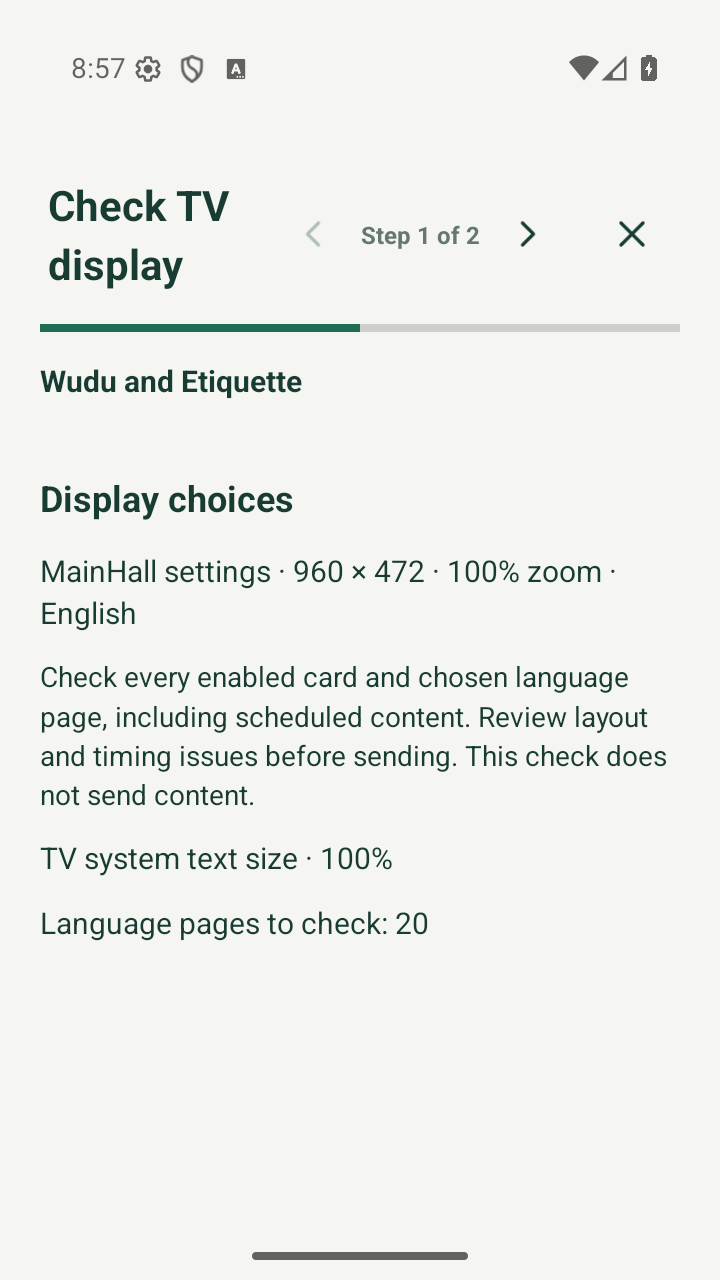
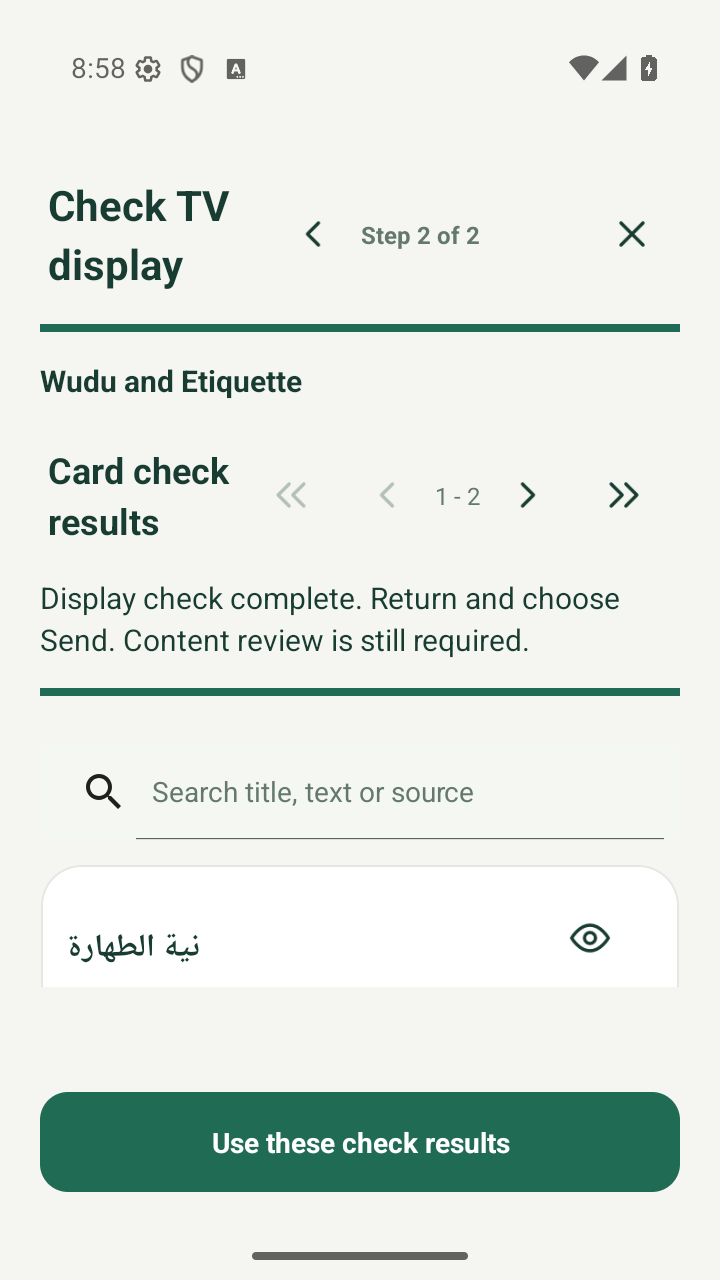
- Preview the display before sending At Review and send, tap Check TV display. Check the TV settings, then the Next arrow to start the card check. Wait until it finishes, open a card preview with the eye icon if needed, address any problems, then tap Use these check results. Review any religious text Minbar requests before sending. The display check does not send anything or approve texts for you.
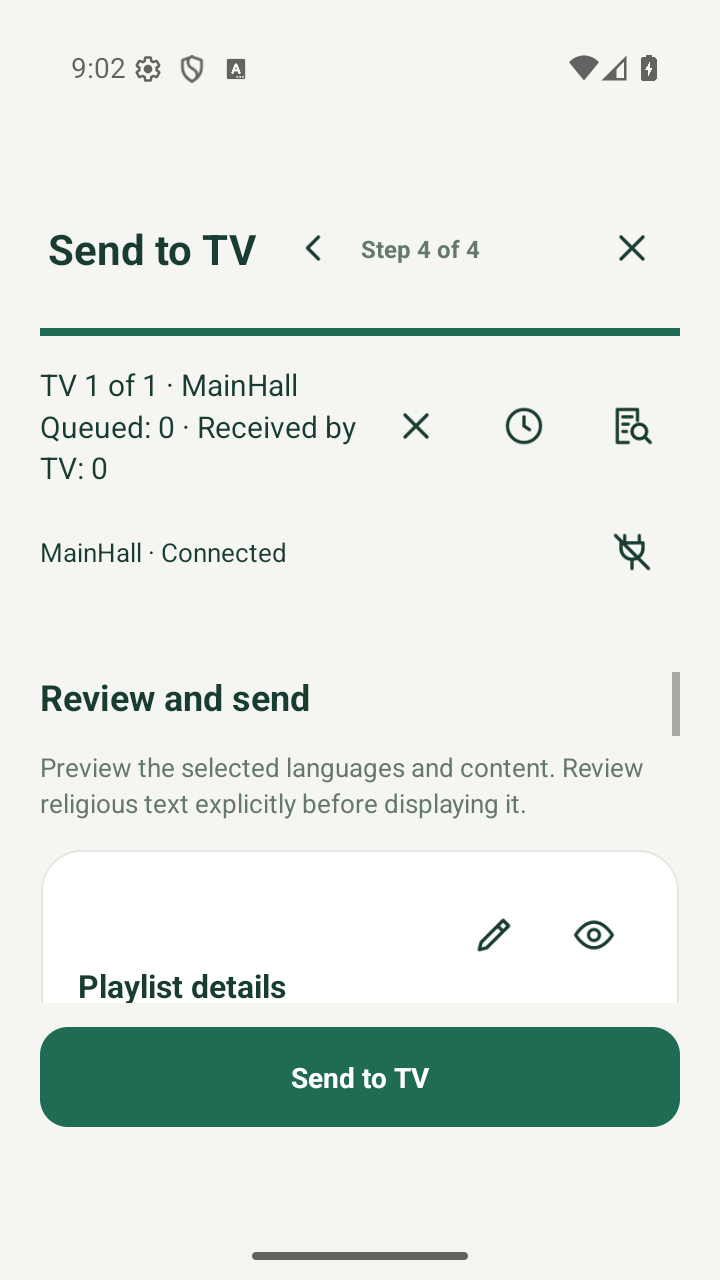
- Send and keep both apps open Check the final summary shows the intended playlist and TV, then tap Send. Leave Minbar open on both devices while it transfers. Wait for the result rather than pressing Send repeatedly. If a delivery is unconfirmed, check its status/history before trying again.
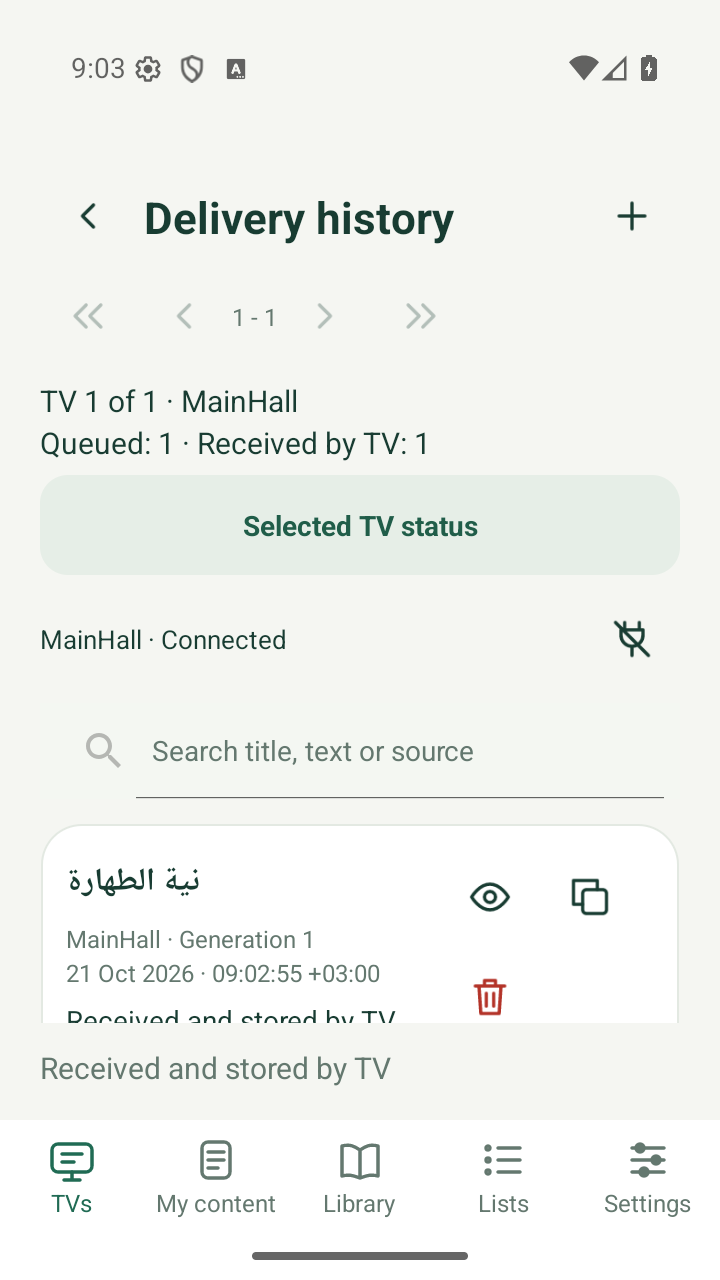
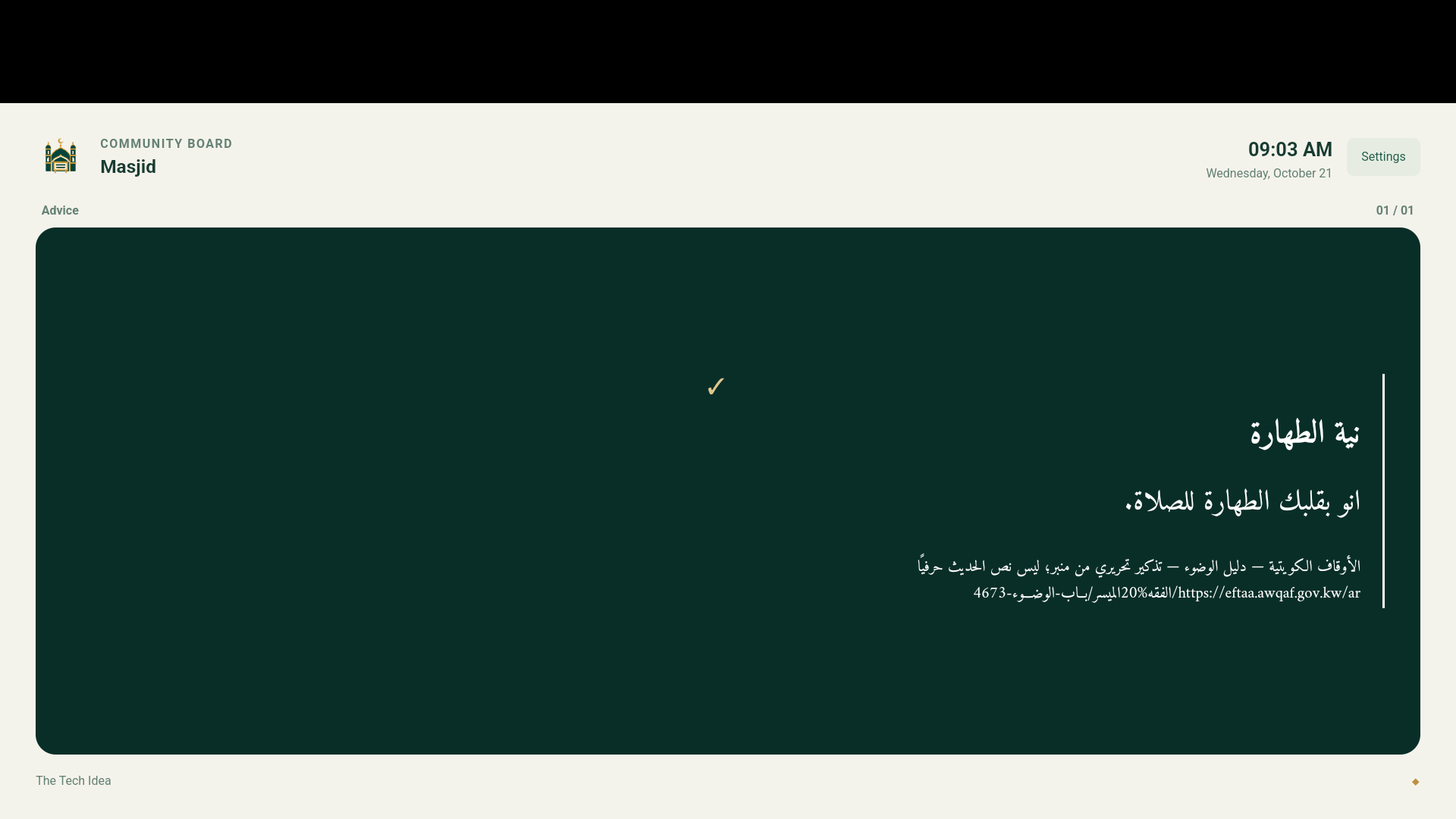
- Check the TV received and saved it On the phone, check the delivery result or the clock-shaped History button in TVs for the TV’s received/saved confirmation. Also look at the actual TV: the intended playlist should be showing. Saving on the phone or merely reaching this guide’s last step is not confirmation. After successful delivery, you may close the phone: the TV keeps playing its saved eligible cards without the phone or internet. Reconnect when sending changes, and confirm the real TV clock if requested.
Change card size with the TV remote
Open Minbar’s Settings using the gear button. Press Down to reach Card zoom. Use Left or Right to choose minus or plus, then press OK to change the size. Up and Down move between settings; OK opens a dropdown. Press Back to close a dropdown or Settings. Install the matching phone and TV updates from this site to receive the remote navigation fix.
Updating without losing your setup
- Create an encrypted backup from the phone app before updating or changing devices. Keep the backup password somewhere safe and separate from the file.
- Download the correct newer APK from this site and install it over the existing app. Accept Update when Android offers it. Use the mobile file for phones and the TV file for TVs; install matching updates on both when supplied.
- Do not uninstall or clear app data to force an update. If Android reports a signature/package conflict, preserve the existing installation and contact support. An APK signed with another key cannot replace it safely.
Play Protect blocked the installation? See what to do. Keep protection enabled and contact support if installation is blocked. Developer mode does not bypass this requirement.
Common problems
APK will not open, is incomplete, or says app not installed
Check that you downloaded the correct phone/TV APK, that the download/transfer completed, and that storage is available. Download again if the file is damaged. File details on the download card show the expected size and SHA-256. Check OS/device compatibility and existing signing conflicts; preserve current data and contact support if it persists.
TV does not appear during discovery
Keep both apps’ connection screens open, use the same local network and leave guest/client isolation off for that network. Pause a VPN that blocks local access if you use one, then search again. The TV searches for the phone’s active session; a closed phone app may not be discoverable. Follow the visible connection workflow; manual IP configuration is not required by Minbar.
Playlist saved on the phone, but nothing changed on TV
Select the correct TV, complete its layout inspection and Send, then wait for its own received/saved receipt. Check card dates, the TV clock and selected languages. Saving a card or playlist on the phone does not automatically publish it.
My TV is Samsung or LG
Check the operating system, not just the panel brand. Samsung Tizen and LG webOS need their native apps, which are not downloadable here yet. If you already use an external Android TV / Google TV device on HDMI, install the TV APK on that device, not on the Tizen/webOS system.
Still need help? Email your device model, Android version and the message you see. Do not send passwords, private keys or confidential backups. admin@thetechidea.app